
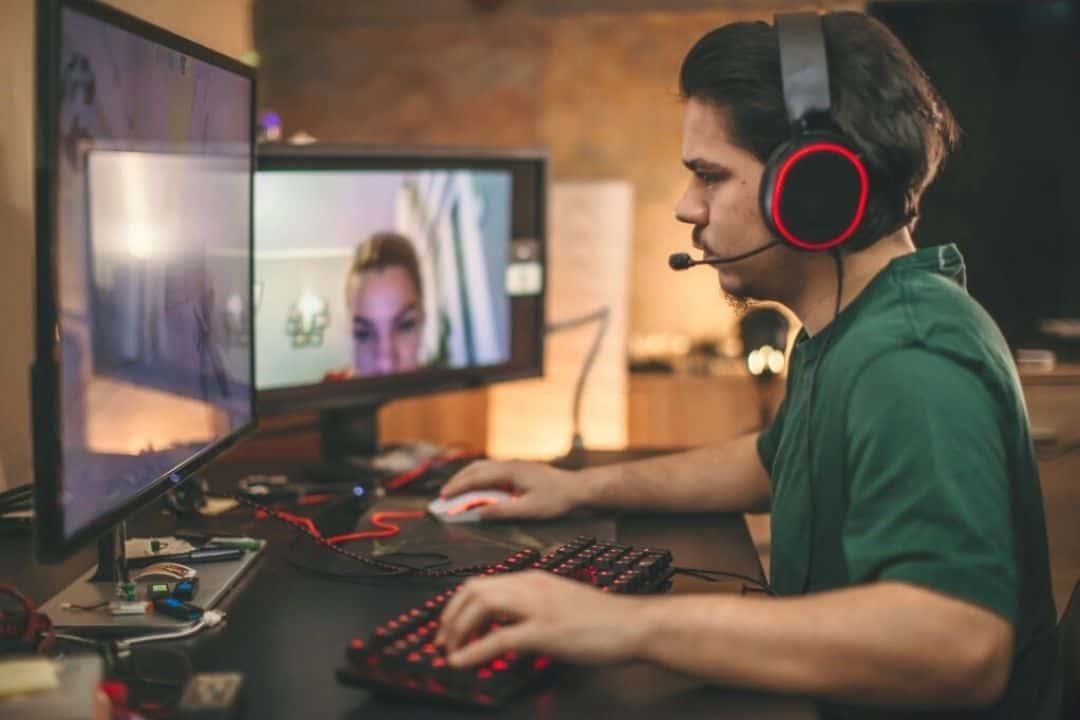
If you’ve ever tried streaming on a laptop and noticed dropped frames while the game still looks fine, you already know the problem.
Streaming rarely fails all at once. It breaks down slowly. Fans get louder, OBS starts lagging, alerts delay, and the stream begins to feel off.
This usually happens 20 to 40 minutes into a session, not in the first few minutes.
Some laptops are excellent for gaming but struggle once OBS, chat, and encoding are added. Others may look weaker on paper but perform better because they stay cool and consistent. That difference is what actually matters for streaming.
We have picked these laptops to find easily. Whether you stream casually, game and stream together, or go live for hours at a time, the laptops below are chosen based on how streaming really stresses a system, not just how good the specs table.
Recent Updates
See what’s changed in this article
This guide is updated when major hardware or availability changes occur.
January 17, 2026: Updated this guide to reflect current laptop availability and newer hardware suited for live streaming in 2026. Older or less relevant models were removed, newer options such as the Lenovo Legion 5i and Razer Blade 14 were added, and specifications were refreshed to match real streaming requirements on platforms like Twitch, YouTube, and Kick.
October 12, 2021: Expanded the original list beyond entry-level systems to include mid-range and premium laptops better suited for regular gaming and live streaming.
What to Look for in the Best Laptop for Live Streaming in 2026
Buying a laptop for live streaming is very different from buying one just for gaming, office work or everyday use. When you stream, the laptop is doing many things at the same time. It has to run the game, handle OBS or Streamlabs, keep browser tabs open, manage alerts and chat, and sometimes record the stream in the background.
This constant load is why many laptops that look powerful on specs table still struggle during real streams. Dropped frames, audio desync, sudden lag, or overheating usually happen because one part of the system cannot keep up for long periods. Understanding how streaming actually stresses a laptop helps you avoid those problems before you spend money.
Minimum vs Recommended Streaming Laptop Requirements
| Component | Minimum (Beginner) | Recommended (Regular Streaming) |
|---|---|---|
| CPU | Core i5 / Ryzen 5 | Core i7, Core Ultra 7, Ryzen 7 or higher |
| GPU | RTX 3050 / 4050 | RTX 4060 / 4070 or higher |
| RAM | 16GB | 32GB or higher |
| Storage | 512GB SSD | 1TB SSD or higher |
| Display | Full HD | QHD or better |
| Battery | 60Wh | 80Wh+ |
Decide Your Budget Based on How You Actually Stream
Before comparing processors or graphics cards, it’s important to be honest about how you plan to stream.
Affordable
Budget or entry-level laptops are best for beginners. These work fine for webcam-only streams, light games, casual screen sharing, or learning how OBS works. They are not meant for demanding games while streaming.
Mid- Range
Mid-range laptops are the best choice for most streamers. These laptops can handle gaming and streaming at the same time using NVIDIA NVENC. If you plan to stream regularly on Twitch or YouTube, this is the category you should focus on.
Premium
Premium laptops are built for long sessions, heavy multitasking, multiple monitors, and advanced setups. These are useful if streaming is a serious hobby or part of your work, and you don’t want performance drops during long streams.
Once your budget category is clear, choosing the right hardware becomes much easier and helps prevent overspending on features you may never use.
Processor (CPU): Keeps Everything Running in the Background
The CPU handles all the background work during a stream. This includes OBS, browser tabs, chat apps, alerts, and system tasks. Even if the game runs on the GPU, a weak CPU can still cause stutters and dropped frames.
Good CPU options for streaming in 2026
Intel Core i5 (12th Gen or newer): Suitable for beginners and light streaming workloads.
Intel Core i7 or i9 (13th and 14th Gen): A strong choice for gaming and streaming together. These handle multitasking much better.
Intel Core Ultra 5, 7, and 9: Designed to stay efficient during long workloads, which helps during extended streaming sessions.
AMD Ryzen 5, Ryzen 7, and Ryzen 9 (6000 and 7000 series): Reliable alternatives with strong performance for both gaming and streaming.
AMD Ryzen AI 7 and Ryzen AI 9: These focus on efficiency and sustained performance. The AI features are not required for streaming, but overall CPU strength makes them future-ready.
Graphics Card (GPU): The Most Important Part for Streaming
For live streaming, the graphics card matters more than almost any other component. NVIDIA GPUs are preferred because they support NVENC, which allows OBS to encode the stream without heavily affecting game performance.
Integrated Graphics:
Integrated graphics are fine only for webcam-only streams or very light tasks. They are not suitable for gaming and streaming at the same time.
NVIDIA RTX GPUs for Streaming
RTX 3050 or RTX 4050: Basic options for entry-level game streaming.
RTX 4060 or RTX 4070: The best balance for most streamers. These GPUs handle gaming and OBS smoothly and work well for Twitch and YouTube.
RTX 4080 or RTX 4090: Designed for high-quality streams, heavy multitasking, and long sessions without performance drops.
NVIDIA RTX 5000 Series (High-End Streaming Setups)
The RTX 5000 series focuses more on stability and long-term performance than just higher frame rates.
RTX 5070 / 5070 Ti – Extra headroom for high-quality streams
RTX 5080 – Suitable for advanced setups with multiple sources and high refresh-rate gaming
RTX 5090 – More than most streamers need, but useful for professional workflows
Why NVENC Is Better Than CPU Encoding for Streaming
For most streamers, NVENC is more reliable than CPU-based encoding. NVENC handles stream encoding separately from the game, which helps keep frame rates stable and reduces dropped frames during live streams.
CPU encoding can work for very light or webcam-only streams, but for gaming and streaming together, NVENC is the safer and more consistent option.
RAM: Don’t Go Below This
Streaming uses more memory than people expect. OBS, browsers, chat tools, and background apps all consume RAM.
- Minimum: 16GB RAM
- Recommended: 32GB RAM
More RAM means fewer slowdowns and smoother streams.
Storage: Streams and Games Fill Space Fast
Game installs, recordings, and clips quickly consume storage.
- Minimum: 512GB SSD
- Recommended: 1TB SSD
Smaller drives become limiting very quickly.
Display: Makes Streaming Easier to Manage
A good display helps you manage OBS, chat, and game windows.
- Minimum: Full HD (1920 × 1080)
- Recommended: QHD (2560 × 1440) or higher
Higher resolution gives more screen space for multitasking.
Battery Life: Not the Top Priority for Streamers
Most streamers use laptops while plugged in.
- Minimum: 60Wh
- Recommended: 80Wh or more
For streaming, cooling, and sustained performance matter far more than battery life.
Common Streaming Mistakes to Avoid
Many streaming problems come from poor hardware choices rather than a lack of skill.
Avoid these mistakes:
- Choosing thin laptops with powerful specs but weak cooling
- Ignoring NVENC support when selecting a GPU
- Buying laptops with only 8GB RAM
- Expecting integrated graphics to handle gaming and streaming
- Overspending on specs that won’t be fully used
Avoiding these mistakes often matters more than chasing the latest hardware.
Recommended Best Laptops for Streaming in 2026
| Image | Product | Feature | Price |
|---|---|---|---|
TOP Pick 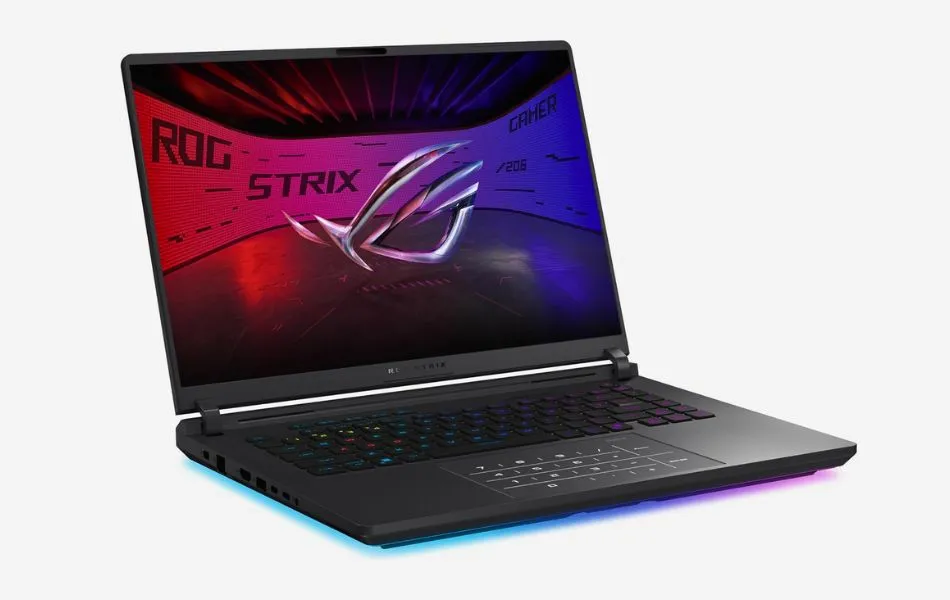 |
ASUS ROG Strix G16 |
| Check Price |
Best Premium
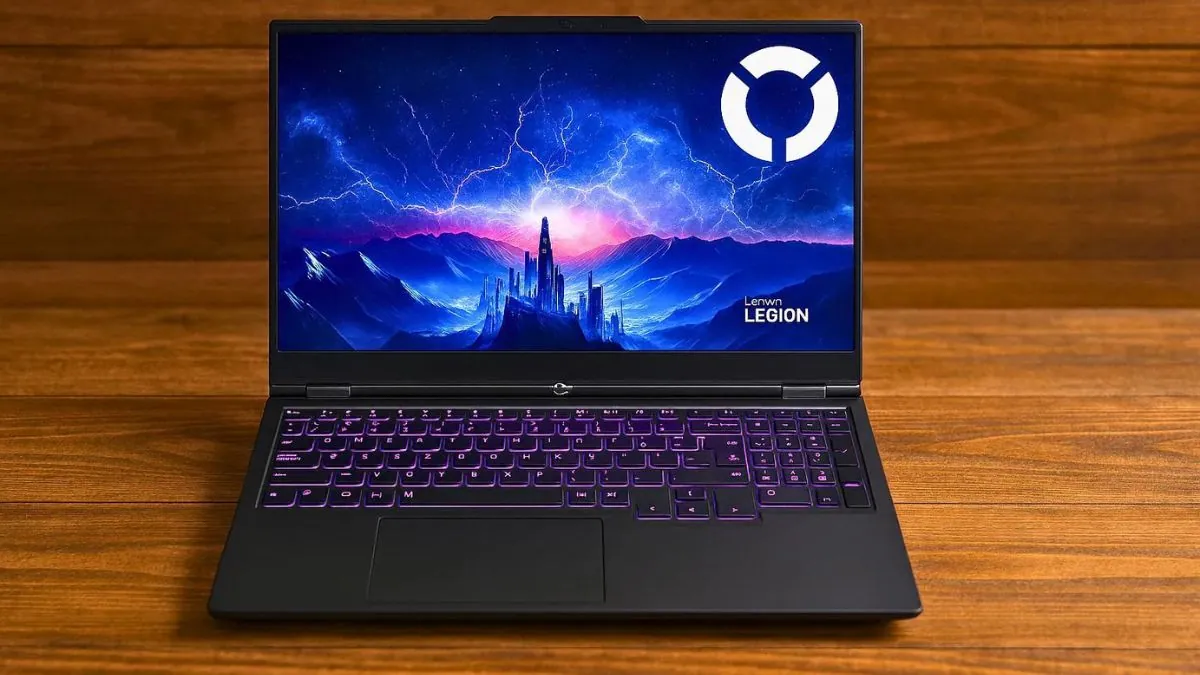 |
Lenovo Legion Pro 7i Gen 10 |
| Check Price |
Best Budget
 |
HP Victus 15 |
| Check Price |
Also Read:
Mid-Range Picks ($1000-$2000)
Who this is for
Good quality streams without overspending
Gaming + OBS using NVENC
Serious Twitch / YouTube streamers
Best High-Performance Laptop for Streaming
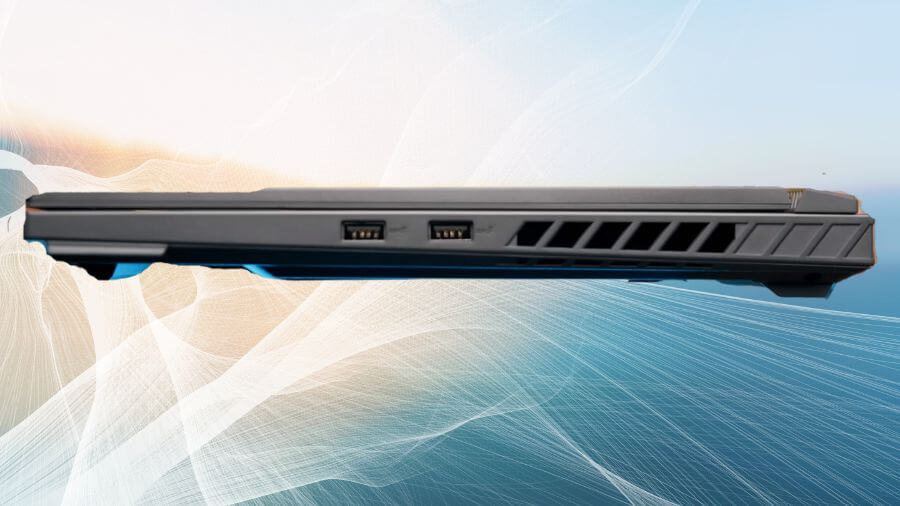


1. ASUS ROG Strix G16
Key Specs
| Processor | Intel Core i7-14650HX |
| Graphics | NVIDIA GeForce RTX 5060 |
| Memory | 16 GB GDDR5 |
| Storage | 1 TB SSD |
| Display | 16-inch, QHD+, 240Hz |
| Weight | 5.51 lbs (2.50 Kg) |
Check Current Pricing
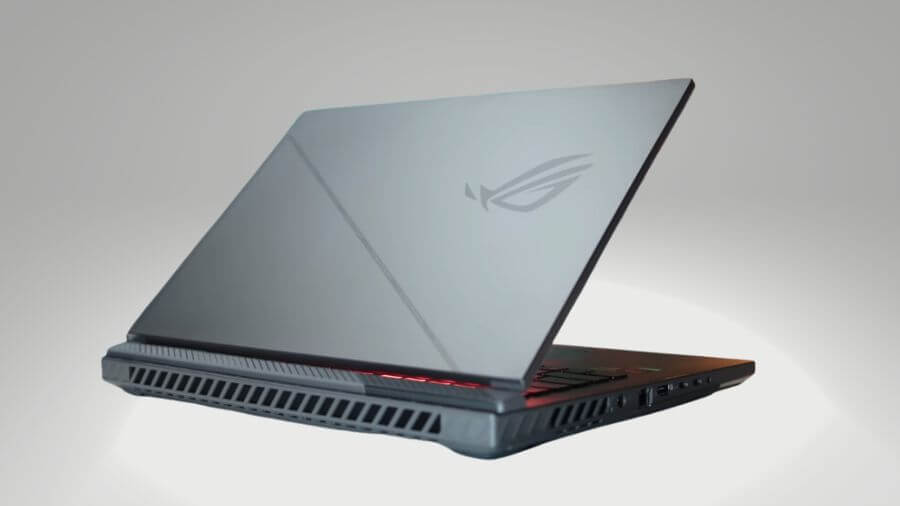
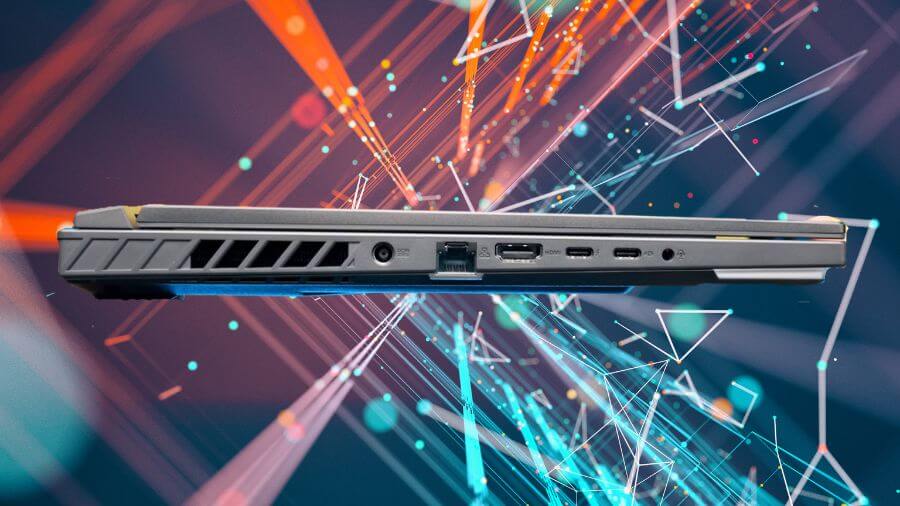
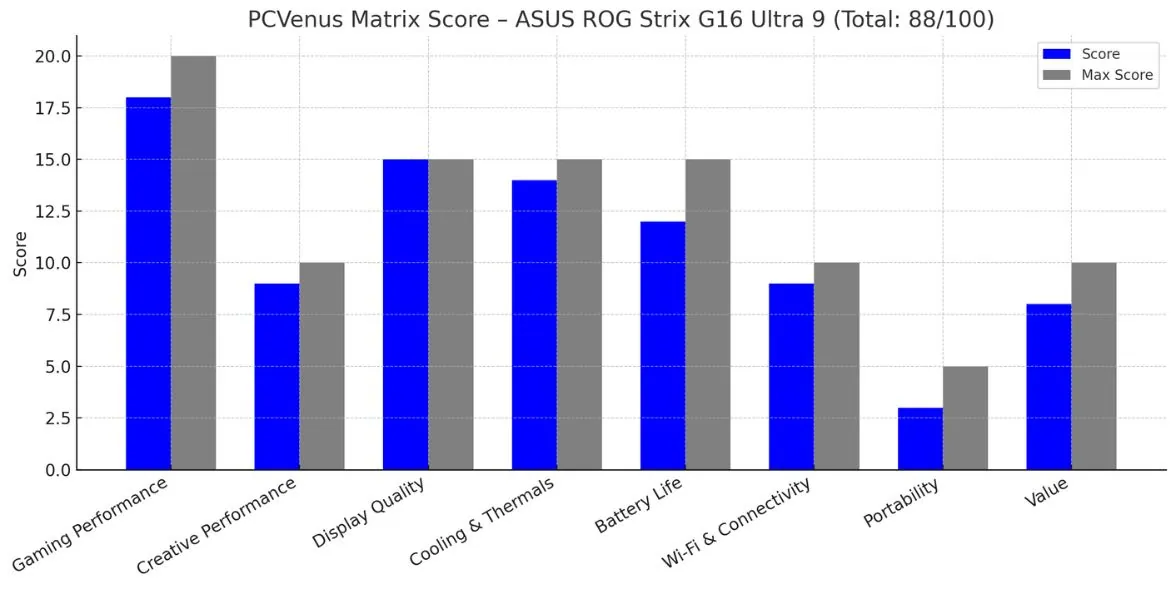
We spent time streaming with the ASUS ROG Strix G16, and it quickly proved to be a powerful option for creators. The Intel Core i7-14650HX and RTX 5060 handled OBS Studio, multiple Chrome tabs, Discord, and a running game without any stutters. Streaming ran smoothly at 1080p60, and CPU usage remained stable even when gaming in the background.
In terms of gaming benchmarks while streaming, results were solid. Cyberpunk 2077 averaged around 90 FPS on 1080p Ultra, Starfield around 70 FPS on High, and Assassin’s Creed Mirage hit over 100 FPS. On competitive games like Valorant, we consistently achieved 200+ FPS, which kept streams running smoothly on Twitch and YouTube.
Compared to budget options like the Acer Nitro V (RTX 4060), the Strix G16 gives you more robust thermals and better stability during long streaming sessions. Plus, it’s not as expensive as premium flagships like the Lenovo Legion Pro 7i or the Razer Blade 16, which have more power but also cost a lot more. This balance is what sets the Strix G16 apart, it’s powerful enough for smooth gameplay and streaming, without reaching the ultra-premium price.
The 16-inch FHD+ display with a 165Hz refresh rate makes the experience even better. It’s not OLED like the Razer Blade, but it offers smooth visuals and good colour accuracy, which is great for editing stream assets or watching recorded clips. The anti-glare coating also makes it easy to work with in a bright room.
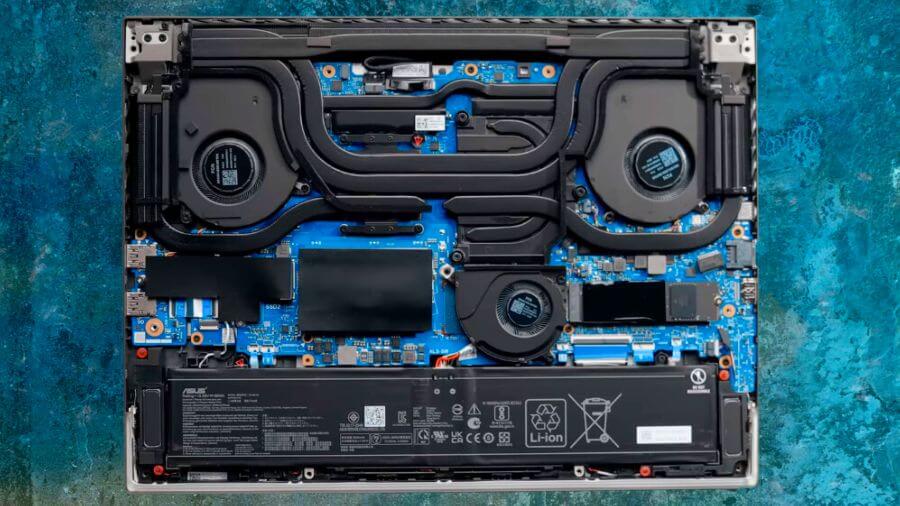
Cooling is one of its strongest aspects. ASUS’s Tri-Fan system with Vapour Chamber and Liquid Metal keeps the laptop between 72°C and 82°C during long gaming and streaming sessions. The fan noise is there, but it never reaches a level that interferes with gameplay or commentary. In contrast, thinner laptops like the MSI Thin 15 can run hotter and louder, impacting performance stability.
Battery life is average. You can expect around 1.5 to 2 hours of battery life if you’re gaming or streaming without being plugged in, and up to 6 hours for lighter tasks like content planning or browsing. This isn’t a laptop for a travel streamer, but most performance laptops in this category perform similarly.
| Category | Test | Score/Result |
|---|---|---|
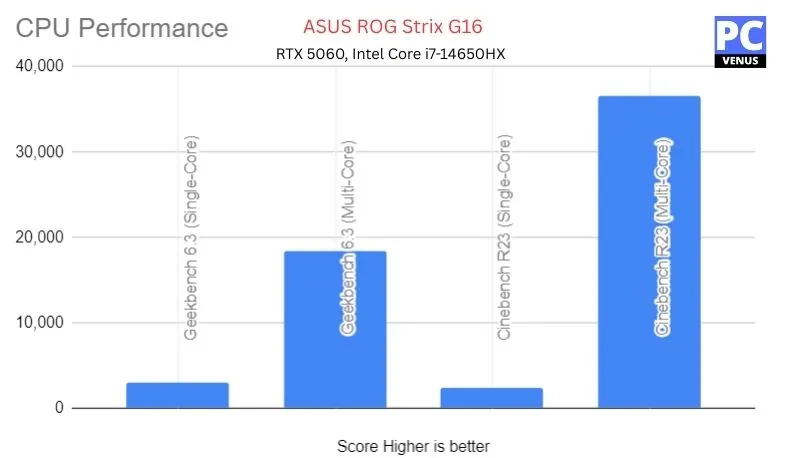
| CPU (Intel Core i7-14650HX) | Geekbench 6.3 Single-Core | 2,971 |
| Geekbench 6.3 Multi-Core | 18,470 | |
| Cinebench R23 Multi-Core | 36,577 | |
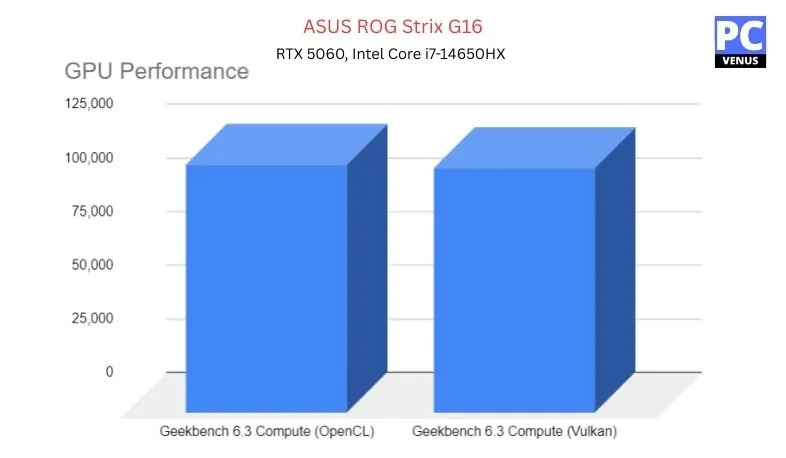
| GPU (NVIDIA RTX 5060) | Geekbench 6.3 Compute (Vulkan) | 114,377 |
| Overwatch 2 (1920×1200, Ultra) | 165 FPS | |
| Shadow of the Tomb Raider (1080p, Max) | 118 FPS | |
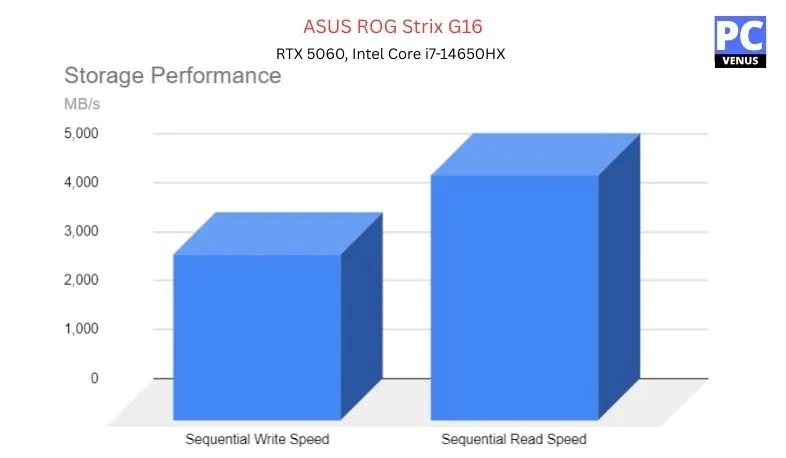
| Storage (1TB PCIe Gen 4 SSD) | Sequential Read | ~5,000 MB/s |
| Sequential Write | ~3,400 MB/s |
Pros
✔ Handles gaming and live streaming simultaneously without lag
✔ GPU provides great encoding support and performance
✔ Cooling system keeps performance stable during long sessions
✔ 165Hz anti-glare display is smooth and color-accurate
✔ Balanced value compared to more expensive premium models
Cons
✘ Battery life is limited under heavy streaming workloads
✘ Slightly heavier than ultraportables
✘ Fan noise is noticeable during demanding tasks
Also Read:ASUS ROG Strix G16: Full Specifications and Benchmarks
Best for Regular Gaming and Streaming


2. Lenovo Legion 5i
Key Specs
| Processor | Intel Core i7-13650HX |
| Graphics | NVIDIA RTX 5050 |
| Memory | 16GB DDR5 |
| Storage | 512GB SSD |
| Display | 15.3-inch 2K WQXGA, 120Hz |
| Weight | 4.6 lbs (2.1 kg) |
Check Current Pricing
Why the Legion 5i Makes Sense for Streaming in 2026
The Lenovo Legion 5i is built for streamers who want consistent performance week after week, not a flashy or ultra-portable setup. It sits between entry-level gaming laptops and expensive desktop-replacement systems, offering a practical balance of power, cooling, and price.
Compared to budget models like Lenovo’s LOQ series, the Legion 5i is designed to handle longer streaming sessions without performance drops, which matters for creators who game and stream regularly rather than occasionally.
Streaming and OBS Behavior in Real Use
The RTX 4060 works well with NVIDIA NVENC, allowing OBS to handle encoding without putting heavy load on the CPU. This helps maintain stable stream quality while gaming at the same time.
The Intel Core i7-14650HX provides enough processing headroom to manage OBS, game engines, browser tabs, chat, and alerts simultaneously without noticeable slowdowns during live streams.
During long streaming sessions, fan noise rises gradually instead of spiking suddenly, and performance stays consistent without mid-stream slowdowns.
Display and Practical Design
The 16-inch WQXGA display offers more vertical space than a standard 1080p panel, which is useful when managing OBS, chat, and stream dashboards alongside gameplay. The 165Hz refresh rate is smooth enough for fast-paced games and live content.
The chassis is not slim, but it feels sturdy with minimal keyboard deck flex. The larger footprint helps keep the laptop stable on a desk during long streaming sessions, which is more important than portability for this category.
Pros
✔ Consistent gaming and streaming performance
✔ RTX GPU with reliable NVENC support
✔ Strong cooling for long sessions
✔ Large, high-resolution 16-inch display
✔ Better long-term value than entry-level gaming laptops
Cons
✘ Heavier than thin gaming laptops
✘ Battery life is average
✘ Thunderbolt support varies by configuration
Best Balanced Streaming


3. Acer Nitro V
Key Specs
| Processor | AMD Ryzen 7 8845HS |
| Graphics | NVVIDIA GeForce RTX 4060 |
| Memory | 16 GB DDR5 |
| Storage | 1 TB SSD |
| Display | 16-inch WUXGA, 165Hz |
| Weight | 5.73 lbs (2.6 kg) |
Check Current Pricing
In 2026, the Acer Nitro V 16 is one of the best value laptops under $1,000 for streaming, gaming, and content creation. It combines powerful visuals, speed, and storage to deliver exceptional performance for Twitch streaming, YouTube editing, and game streaming.
Performance
The Nitro V is powered by the latest Ryzen 7 8845HS processor, an efficient, AI-enabled eight-core processor that handles video encoding, multitasking, and heavy software workloads with ease. Whether you’re streaming or editing 4K video, it runs fast and remains responsive.
It’s equipped with an NVIDIA GeForce RTX 4060 GPU with support for ray tracing and DLSS 3.5, making it ideal for high-quality game streaming, real-time visual rendering, and GPU-accelerated creative tasks.
16GB of DDR5 memory ensures fast loading and smooth multitasking, while a 1TB Gen 4 SSD gives you ample storage for recordings and projects.
Display and Design
The 16-inch WUXGA IPS display offers 1920 x 1200 resolution, a fast 165Hz refresh rate and 100% sRGB color coverage, ideal for crisp visuals, color grading and video playback. The 16:10 aspect ratio gives you more room to work, making it easy to edit your timeline or chat window.
The sleek and sturdy chassis weighs only 5.5 pounds, making it perfect for desktop placement and the occasional mobile office. A MUX switch allows the GPU to directly access the display, boosting frame rates and performance when streaming or gaming.
Other Features
The Nitro V 16 is equipped with dual-fan cooling and Acer CoolBoost technology to keep temperatures high even during extended use. Purified Voice 2.0 with AI noise reduction ensures clear microphone input even in noisy environments, perfect for live commentary.
Modern connectivity includes Wi-Fi 6E, USB4, HDMI 2.1, and Ethernet, giving you faster internet speeds, smoother video output, and support for multiple monitors or capture cards.
Who Should Buy This & Why:
The Acer Nitro V is perfect for streamers, gamers, and content creators who need serious performance for live streaming, video editing, and multitasking.
With its Ryzen 7 CPU, RTX 4060 GPU, and high-refresh 100% sRGB display, it delivers smooth visuals and fast processing, perfect for OBS, Adobe apps, and games.
Reasons to Skip It:
Don’t buy this laptop if you need a thin and light laptop for everyday tasks. It’s too heavy and overpowered for simple web browsing or daily use.
Pros
✔ Affordable Price
✔ Robust gaming performance
✔ High-refresh-rate display with accurate color reproduction
✔ Comprehensive connectivity options
✔ AI-enhanced features for improved user experience
✔ Advanced cooling system ensuring sustained performance
Cons
✘ Battery life may require frequent charging during heavy use
✘ Webcam limited to 720p resolution
Read Acer Nitro V 16: Full Specifications and Benchmarks
Premium Picks ($2,000+)
Who this is for
Professional streamers
Gaming + streaming at high settings
Multi-monitor + capture card setups
Long streaming
Best for Long, Professional Streaming Sessions
1. Lenovo Legion Pro 7i Gen 10
Key Specs
| Processor | Intel Core Ultra 9 275HX |
| Graphics | NVIDIA RTX 5070 Ti |
| Memory | 32GB DDR5 |
| Storage | 1TB SSD |
| Display | 16-inch WQXGA, 240Hz |
| Battery | 99.9Whr |
| Weight | 5.7 lbs (2.6 kg) |
Check Current Pricing
Why This Laptop Is Built for Professional Streaming
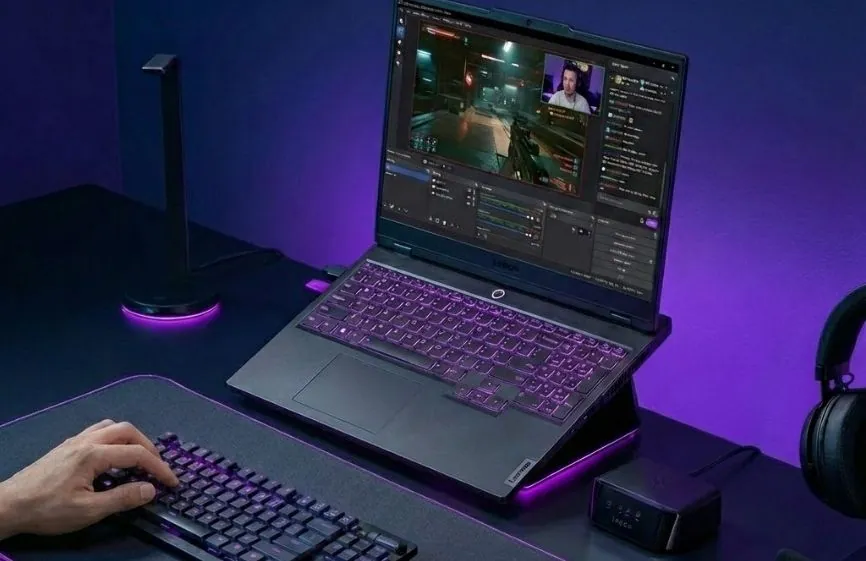
The Lenovo Legion Pro 7i is designed for streamers who treat streaming as serious work, not a casual side activity. This is a large, desktop-class laptop built to stay stable during long, demanding sessions where reliability matters more than portability.
For creators who stream for several hours at a time, use capture cards, run multiple displays, or manage heavy background tools, this system offers the kind of consistency smaller laptops struggle to maintain.
Stability Under Long Streaming Sessions
The combination of the Intel Core Ultra 9 275HX and RTX 5070 Ti provides enough headroom to handle gaming and OBS streaming simultaneously without pushing the system to its limits.
In real streaming scenarios, the Legion Pro 7i comfortably supports:
- High-FPS gaming while streaming with NVENC
- OBS with scene switching, alerts, and recording enabled
- Background apps such as chat tools, browsers, and stream management software
- Multi-monitor and capture-card setups
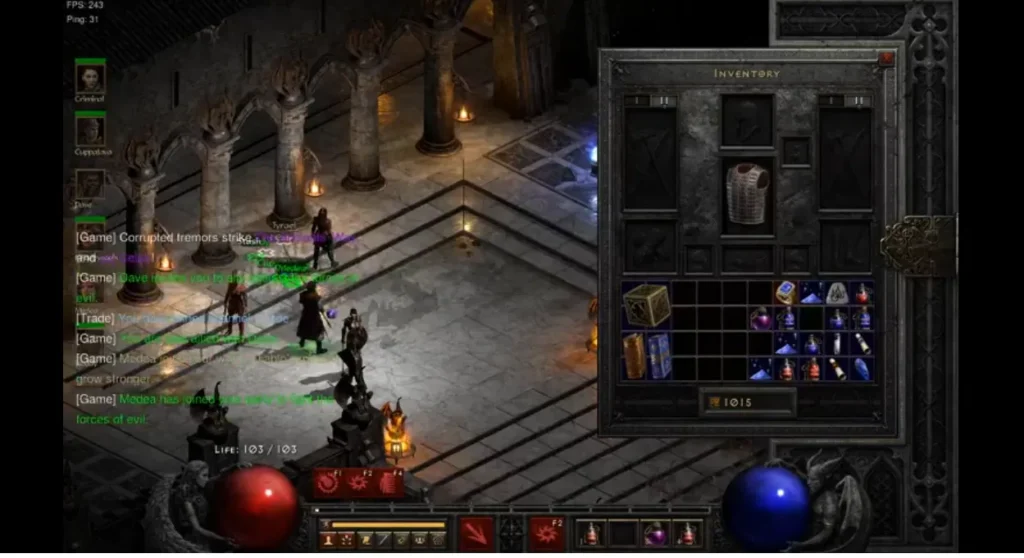
Lenovo’s Coldfront vapor-chamber cooling plays a key role here. During extended sessions, performance remains consistent with minimal throttling, which is critical for streamers who cannot afford dropped frames or unstable output mid-stream.
Display and Build Quality
The 16-inch OLED display is excellent for professional setups. The 240Hz refresh rate, impressive contrast, and sharp 2560 × 1600 resolution make it ideal not only for gaming but also for simultaneously monitoring stream output, chat, and dashboards.
The chassis feels sturdy with minimal flex, and the larger frame helps keep the laptop stable on a desk during long streaming sessions. This isn’t a thin or lightweight laptop, but its extra size allows for better cooling and consistent performance, which is far more important than portability for extended streaming sessions.
Benchmark/Test
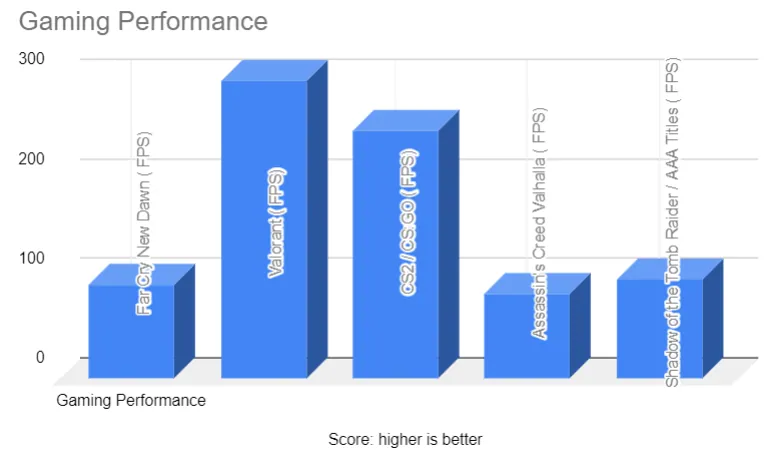
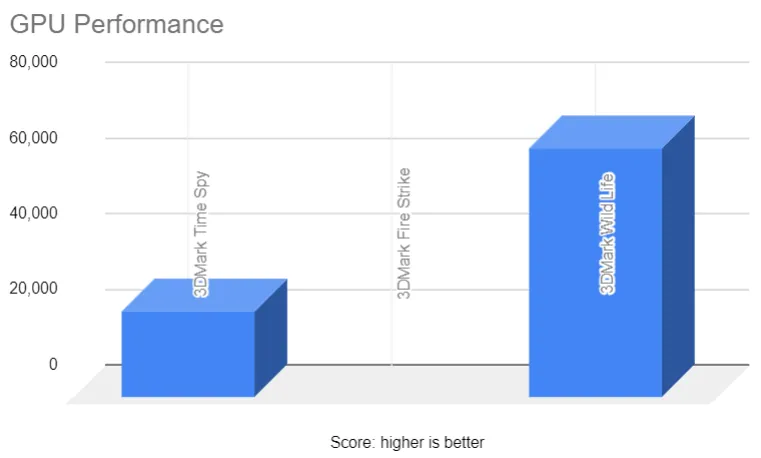
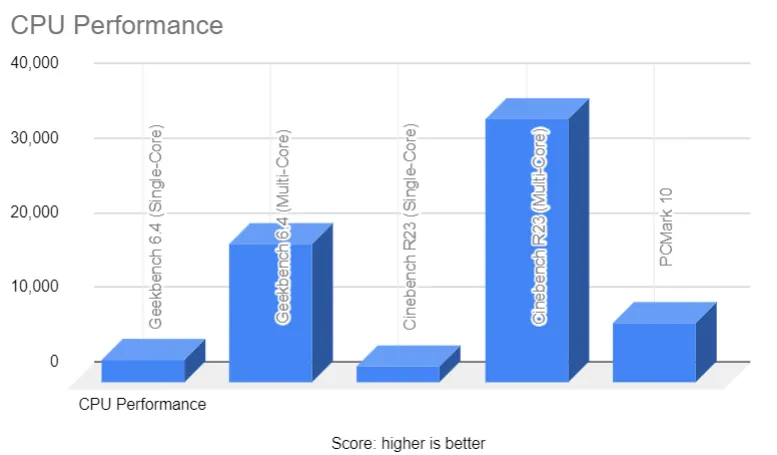
Want full benchmarks and detailed testing?: Read our complete Lenovo Legion Pro 7i Gen 10 review
Pros
✔ Excellent stability for long streaming sessions
✔ Powerful RTX GPU with NVENC support
✔ Strong cooling for sustained workloads
✔ High-quality OLED 240Hz display
✔ Plenty of RAM for heavy multitasking
Cons
✘ Heavy and not very portable
✘ Battery life is average for its size
Premium Compact Laptop for Streaming

2. Razer Blade 14
Key Specs
| Processor | AMD Ryzen AI 9 365 |
| Graphics | NVIDIA RTX 5070 |
| Memory | 32GB LPDDR5X |
| Storage | 1 TB SSD |
| Display | 14-inch 3K OLED, 120Hz |
| Weight | 3.6 lbs (1.6 kg) |
Check Current Pricing
Why It Works Well for Streaming
The Razer Blade 14 is built for streamers who want serious performance in a laptop that is still easy to carry. Despite its compact size, it has enough CPU and GPU headroom to handle gaming and OBS streaming at the same time.
The RTX 5070 Laptop GPU supports NVIDIA NVENC, which allows smooth hardware encoding without heavily loading the CPU. This helps maintain stable stream quality while gaming. The Ryzen AI 9 365 processor handles background tasks like chat, alerts, and recording software without slowing the stream.
This balance makes the Blade 14 well suited for Twitch and YouTube creators who travel or want a clean, space-saving setup.
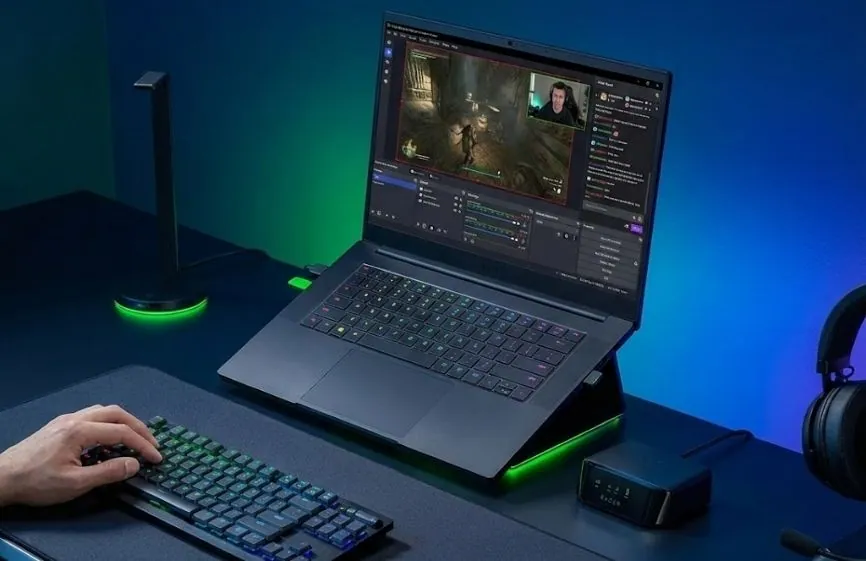
Gaming and OBS Performance
With the RTX 5070 GPU and 32GB of fast LPDDR5X memory, the Blade 14 can comfortably:
- Run modern games at high settings
- Stream using OBS with NVENC
- Handle multitasking such as browser tabs, chat, and alerts
During longer streaming sessions, Razer’s vapor-chamber cooling helps keep performance stable. Fan noise does increase under sustained load, which is expected for a thin, high-power laptop. In practical use, this setup is well suited for 1080p60 and 1440p streaming using NVENC without dropped frames.
Display and Design
The 14-inch 3K OLED display delivers sharp visuals, deep contrast, and smooth motion with its 120Hz refresh rate. This is useful not only for gaming, but also for monitoring stream output, chat, and overlays.
The CNC-milled aluminum body feels solid and premium. At under 4 lbs, it is easy to carry and works well for streamers who move between locations.
Pros
✔ Very portable for a high-performance streaming laptop
✔ RTX GPU with NVENC support for smooth streams
✔ Sharp and vibrant OLED display
✔ Premium build quality
✔ Plenty of RAM for multitasking
Cons
✘ Expensive
✘ Fans can get loud under heavy streaming load
✘ Limited upgrade options due to compact design
Budget/ Cheap Picks (Under $1000)
Who this is for
Beginner streamers
Casual gaming streams
Webcam + light gameplay streams
Best Budget HP Laptop for Streaming
1. HP Victus 15
Key Specs
| Processor | AMD Ryzen 7 7445HS |
| Graphics | NVIDIA RTX 4050 |
| Memory | 16GB DDR5 |
| Storage | 512GB SSD |
| Display | 15.6″ FHD, 144Hz, IPS |
| Battery | 3-cell, 52.5 Wh Li-ion |
| Weight | 5.06 lbs (2.29 kg) |
Check Current Pricing
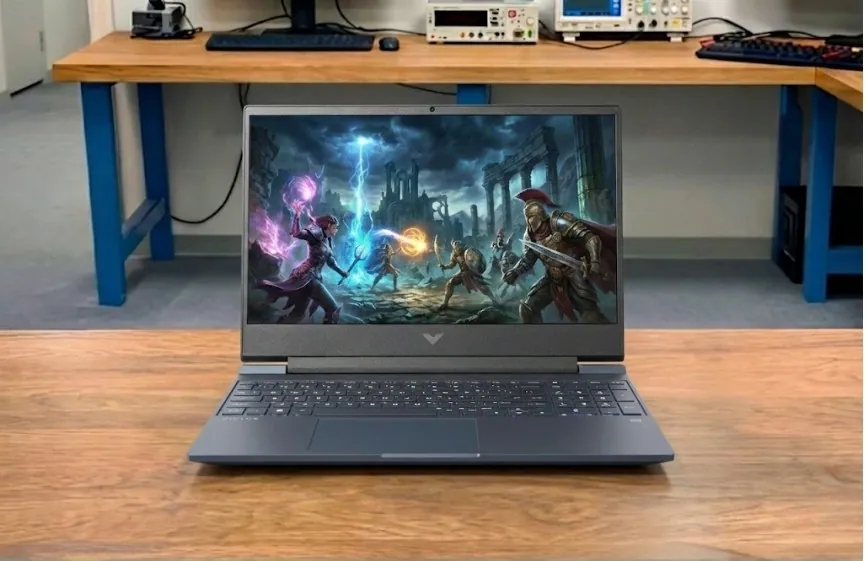
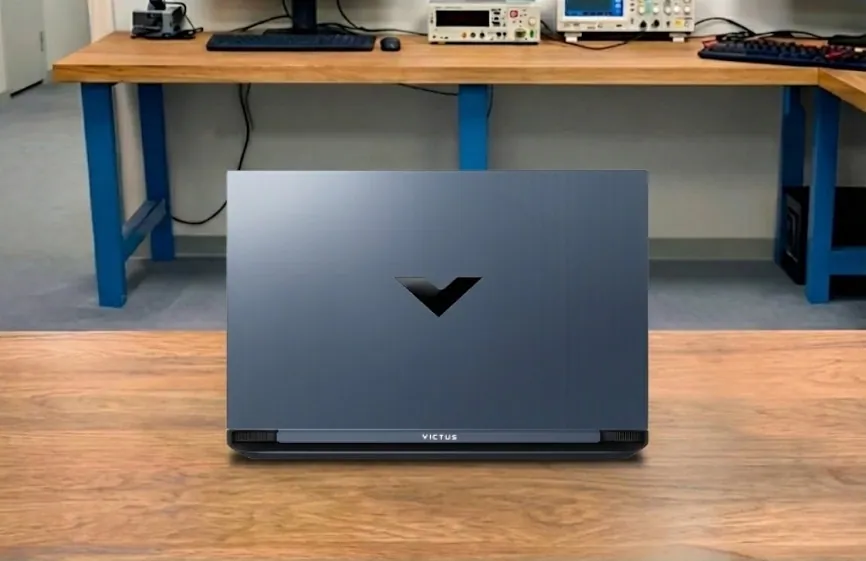
The HP Victus 15 is one of the best budget laptops for those looking to start streaming on Twitch, YouTube, or Facebook without spending a fortune.
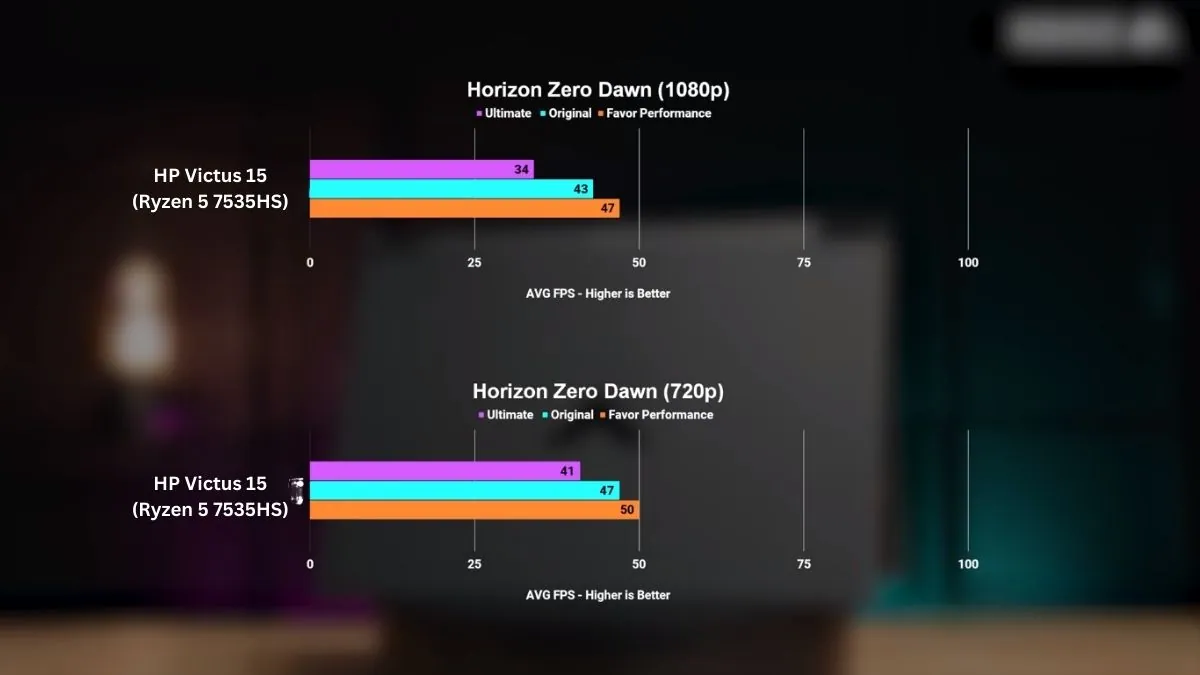
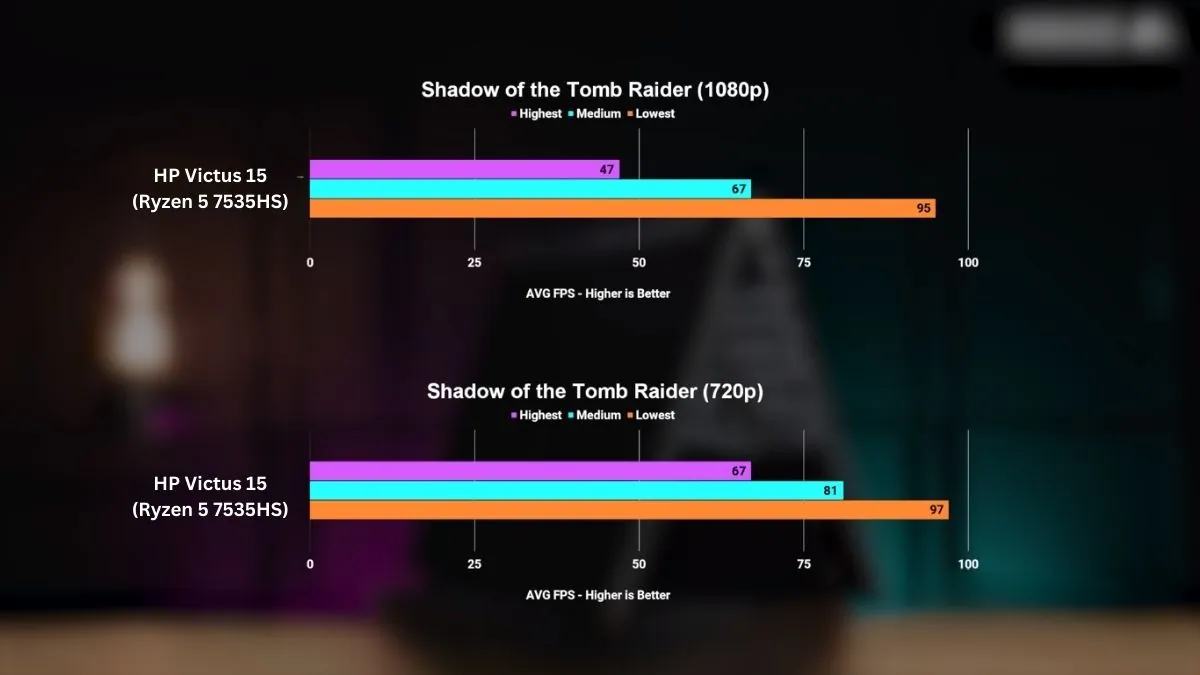
During our testing, it ran OBS Studio while playing games like Valorant and Fortnite, and streams ran smoothly without any major frame drops. The RTX 2050 graphics card provides ample power for real-time video encoding, ensuring your viewers see a clear stream.
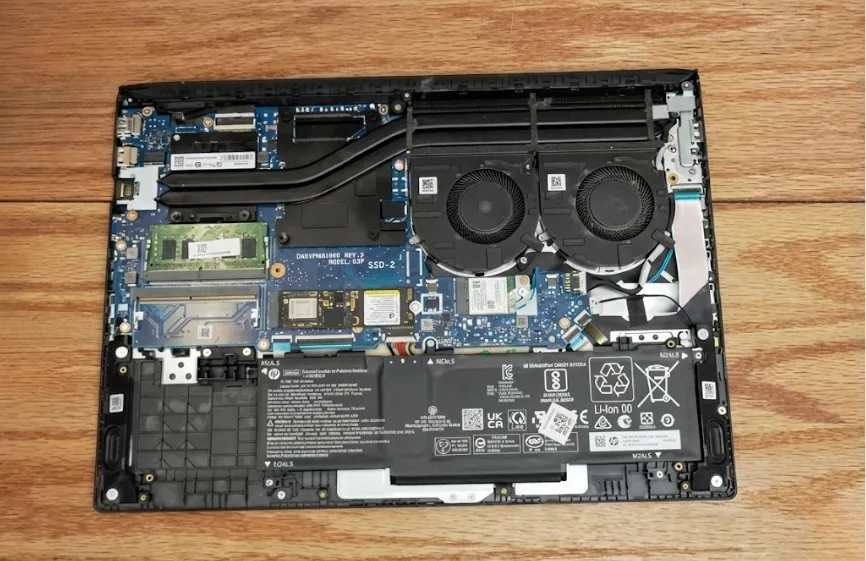
Multitasking is another strength. With the Ryzen 5 7535HS chip and 16GB of DDR5 RAM, the Victus can easily handle live streams, games, Discord chats, and the browser simultaneously. The 512GB SSD loads quickly and provides ample space for saved clips and software.
The 15.6-inch 144Hz display makes games and videos look smooth, which is helpful for monitoring gameplay while streaming. Brightness is average at 250 nits, so it works best indoors.
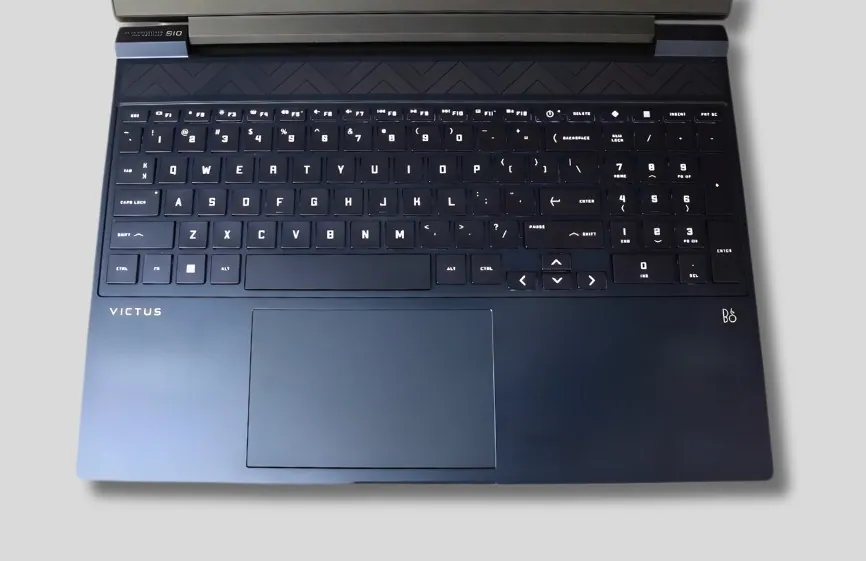
The backlit keyboard is comfortable for extended use, and the cooling system manages heat well for continuous use, although the fans do weaken a bit under heavy load.
Battery life isn’t its weakest point, lasting about 4 hours with light use, so streaming is best done while plugged in. Compared to cheaper laptops like the Acer Aspire 3, the Victus handles OBS and graphics-intensive games much better. Premium laptops like the Razer Blade 15 offer brighter screens and higher-end GPUs, but they cost significantly more. For new streamers on a budget, the HP Victus 15 is a great option.
Who is it Best For: Beginners and budget-conscious streamers who want a laptop that can game and stream at the same time.
Who Should Skip It: You need very long battery life or a premium display for advanced editing and professional broadcasting.
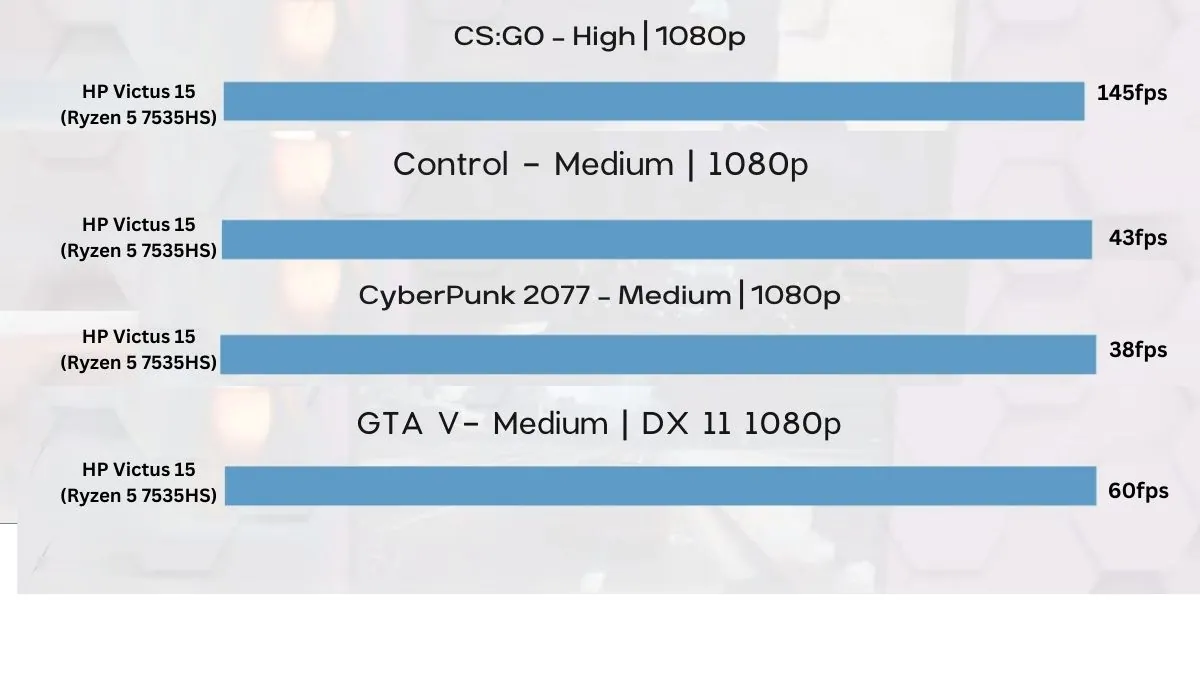
Benchmarks and Test
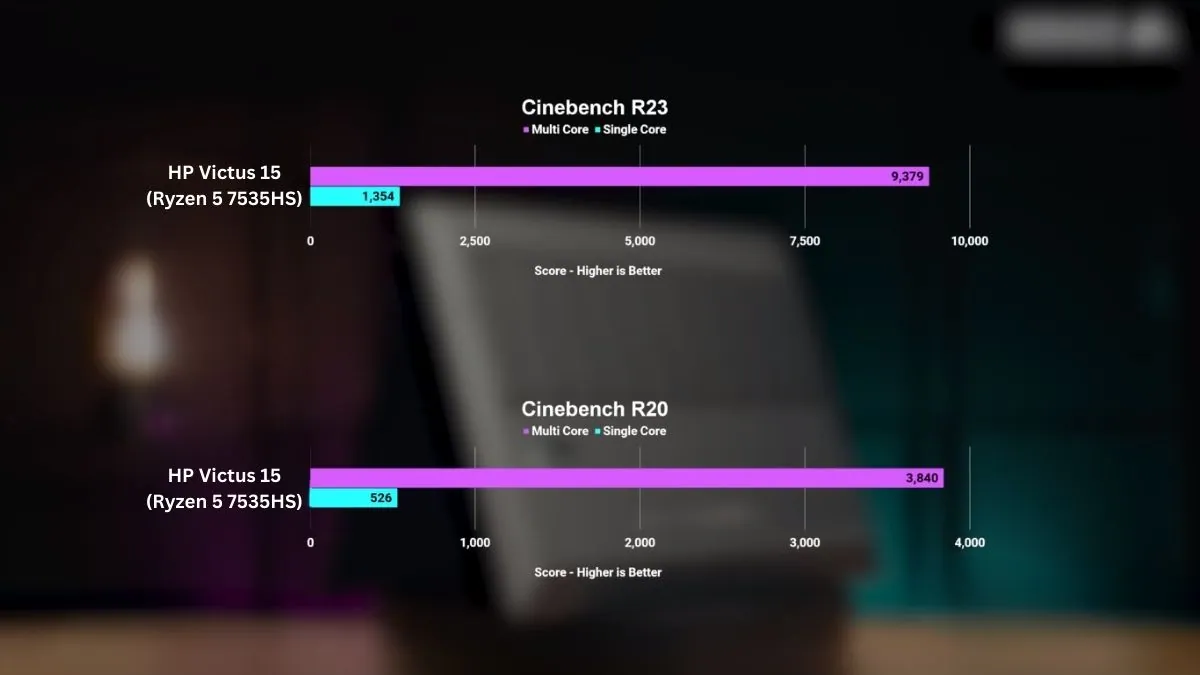
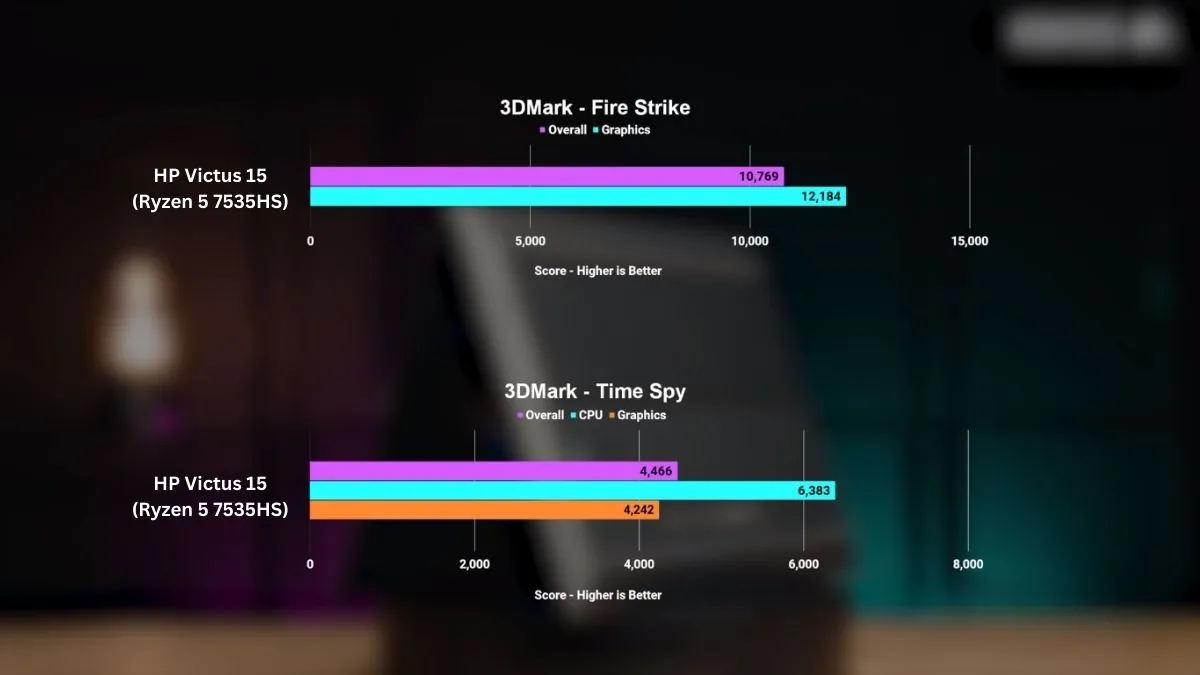
In our review, the Ryzen 5 7535HS with RTX 2050 achieved a Cinebench R23 single-core score of 1354 and a multi-core score of 9379. These numbers confirm its ability to handle video encoding and multitasking for streaming.
Pros
✔ Runs OBS and games together without lag
✔ Smooth 144Hz display for gameplay and streaming
✔ Strong multitasking with 16GB RAM
✔ Backlit keyboard for long sessions
✔ Affordable entry point for streamers
Cons
✘ Battery backup is short for streaming
✘ Plastic build feels basic
✘ Screen brightness is only average
Best Performance-Focused Thin Laptop Under $700
2. MSI Thin 15
Key Specs
| Processor | 13th Gen Intel Core i7-13620H |
| GPU | NVIDIA GeForce RTX 4050 |
| RAM | 16GB DDR4 |
| Storage | 512GB SSD |
| Display | 15.6-inch FHD (1920 × 1080), IPS 144Hz |
| Weight | 4.1 pounds (1.86 kg) |
Check Current Pricing
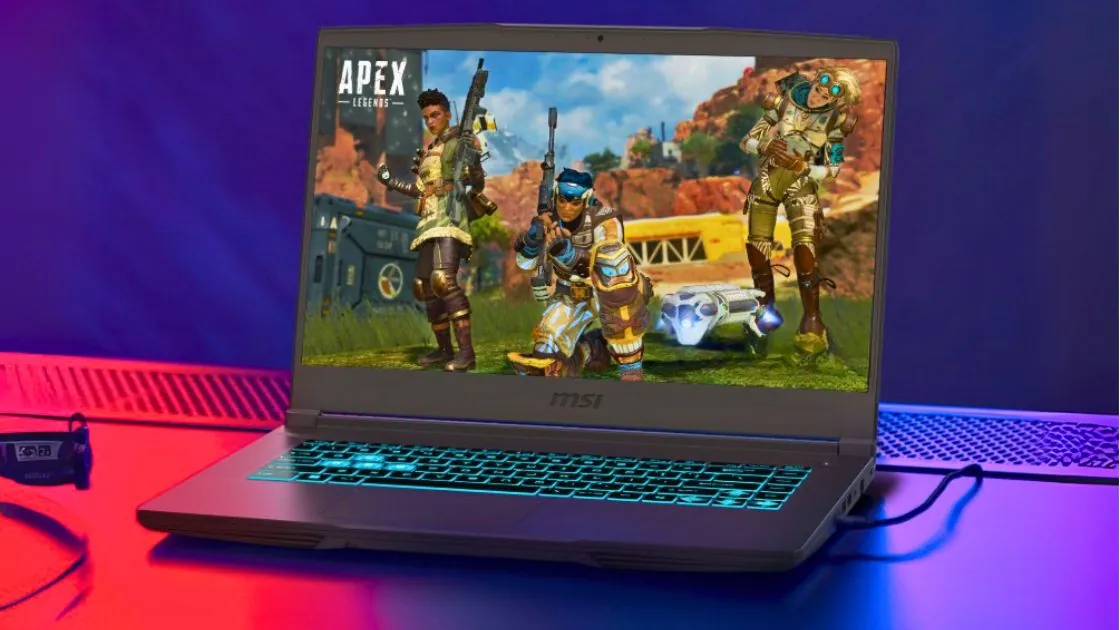
Streaming requires not only powerful gaming performance but also stable multitasking, smooth encoding, and reliable cooling. The MSI Thin 15 combines all of these advantages in a lightweight and portable package, making it one of the ideal laptops for streamers in 2026.
Whether you’re streaming to Twitch, YouTube, or recording your gameplay, this laptop can handle both gaming and streaming smoothly and without interruption.
Performance
Powered by an Intel Core i7-13620H processor with 10 cores and 16 threads, this laptop is perfect for multitasking between games, OBS Studio, and chat apps.
The NVIDIA GeForce RTX 4050 GPU with DLSS 3 support ensures smooth, high-fidelity gameplay and fast video encoding, a huge advantage for streaming.
Its 16GB of DDR5 memory enables seamless multitasking, and the 512GB NVMe SSD ensures fast loading of games and streaming software.
Display and Design
The 15.6-inch Full HD IPS display with a 144Hz refresh rate provides a smooth visual experience for gaming and streaming. Slim bezels make the screen even more attractive, while its weight of 7.43 pounds (3.37 kg) chassis makes it portable and perfect for streamers who frequently travel to events or switch between devices. The brushed metal finish lends it a modern and professional look.
Other Features
The Cooler Boost 5 cooling system with dual fans and multiple heat pipes keeps the CPU and GPU cool even during long streams. Wi-Fi 6E ensures a faster, more stable connection, essential for high-quality streaming. The backlit keyboard makes late-night streams more comfortable, and multiple I/O ports (USB-C, HDMI, RJ-45, and USB-A) support cameras, microphones, and other displays.
Why It’s Special
The MSI Thin 15 is an excellent laptop for streamers, combining gaming performance, advanced encoding support, and multitasking capabilities at an affordable price. The RTX 4050 GPU and DDR5 RAM make it future-proof, plus its portability means you can stream from home, in the studio, or on the go.
Pros
✔ Lightweight design for daily carrying
✔ Quiet operation even under load
✔ Good color accuracy on the high refresh rate display
✔ MSI Center software is intuitive and useful
✔ Expandable RAM for future needs
✔ Competitive pricing
✔ Solid build quality with minimal flex
Cons
✘ GPU limits high-end gaming potential
✘ Battery provides mediocre endurance
✘ No webcam (dealbreaker for online classes)
How These Streaming Laptops Were Chosen
We selected these laptops based on how well they handle real-world live streaming, not just on-paper specifications. Streaming puts continuous load on the CPU, GPU, memory, and cooling system at the same time, so sustained performance matters more than short benchmark results.
Our focus was on laptops that can reliably run OBS or Streamlabs alongside games, chat tools, and background apps without frequent throttling. We prioritized dedicated NVIDIA GPUs with NVENC support, capable CPUs, effective cooling designs, practical memory capacity, and overall value based on current availability.
The goal was to highlight laptops that stay stable during long streaming sessions, not machines that only look powerful on spec sheets.
The Best Platforms to stream
| Platform | CPU (Laptop Class) | GPU (Laptop) | RAM | Storage | Typical Output | Recommended Encoder | Upload Speed |
|---|---|---|---|---|---|---|---|
| Twitch | Core i7 HX / Ryzen 7 6000+ | RTX 3060 / 4060 | 16GB (32GB ideal) | 512GB SSD | 1080p 60fps | NVENC (H.264) | 6 Mbps |
| YouTube Live | Core i7 / Core Ultra 7 | RTX 3050 / 4060 | 16GB | 1TB SSD | 1440p–4K 60fps | NVENC or AV1 (RTX 40+) | 12–20 Mbps |
| Kick | Core i7 HX / Ryzen 7 | RTX 3060 / 4060 | 16GB (32GB ideal) | 512GB SSD | 1080p 60fps | NVENC (H.264) | 6–8 Mbps |
| Facebook Gaming | Core i5 12th Gen / Ryzen 5 | GTX 1660 / RTX 3050 | 16GB | 512GB SSD | 720p–1080p 30fps | NVENC (H.264) | 4–6 Mbps |
| TikTok Live | Core i7 / Ryzen 7 | RTX 3050 / 4060 | 16GB | 512GB SSD | 1080p Vertical | NVENC (H.264) | 6–10 Mbps |
| Discord (Nitro) | Core i7 / Ryzen 7 | RTX 3050 / 3060 | 16GB | 512GB SSD | 1080p 60fps | CPU or NVENC | 5 Mbps |
The platform you stream on doesn’t just decide where your audience watches. It also changes how hard your laptop has to work. Bitrate limits, encoding behavior, and stream duration all affect whether your system stays smooth or starts dropping frames mid-stream.
This is why some laptops feel fine on one platform but struggle badly on another.

1. Twitch
Twitch is still the toughest platform on laptops. Streams usually run at higher bitrates, and real-time interaction means OBS, chat, alerts, and encoding are all active at the same time.
This is where weak cooling or poor GPU support shows up quickly. Many laptops can game smoothly, but start stuttering on Twitch after 30–40 minutes once everything is running together.
Works best with:
- Dedicated NVIDIA GPUs with NVENC
- Strong cooling for long sessions
- Streamers who go live often and for long hours
If a laptop can handle Twitch smoothly, it usually handles other platforms without issues.
2. YouTube Gaming
YouTube is more forgiving than Twitch. Compression is handled better, and the platform works well for both live streams and recorded content.
Because YouTube supports higher resolutions and long-term VOD storage, CPU performance and storage capacity matter more here, especially if you record while streaming.
Works best with:
- Balanced CPU and GPU performance
- Enough storage for recordings and highlights
- Streamers who mix live streams and uploads
3. Facebook Gaming
Facebook Gaming puts less pressure on hardware compared to Twitch. Bitrates are lower, and streams are usually shorter and more casual.
This makes it easier to stream smoothly on mid-range laptops, as long as the system is stable and properly configured.
Works best with:
- Beginners
- Casual or community-focused streams
- Mid-range laptops with consistent performance
4. Kick
From a hardware point of view, Kick behaves very similarly to Twitch. Encoding demands are close, and stream stability matters more than peak frame rates.
Laptops that struggle on Twitch usually struggle on Kick as well, especially during longer sessions.
Works best with:
- Dedicated GPUs
- Reliable cooling
- Gaming and chat-heavy streams
5. TikTok Live
TikTok Live places different demands on a laptop compared to traditional gaming platforms. Streams are often vertical, shorter, and focused on interaction rather than long gameplay sessions.
The challenge with TikTok is not raw power, but handling encoding smoothly while managing camera feeds, overlays, and sometimes screen capture at the same time. If you stream to TikTok and another platform together, system load increases quickly.
Works best with:
- Dedicated GPUs for stable encoding
- Laptops that can handle vertical streaming layouts
- Creators running dual streams or mirrored outputs
6. Discord
Discord streaming is usually lighter than Twitch or YouTube, but it still exposes weak systems during longer sessions. Screen sharing, video calls, and background apps can add up quickly, especially in large servers.
While Discord does not require extreme hardware, stability matters. CPU and memory limitations often show up first, rather than GPU limits.
Works best with:
- Strong CPUs for screen sharing and calls
- Enough RAM to avoid slowdowns
- Casual or private streaming setups
How Platform Choice Affects Laptop Requirements
Each platform stresses your laptop in different ways:
- Twitch and Kick push the GPU harder and expose cooling limits
- YouTube benefits from stronger CPUs and more storage
- TikTok Live increases encoding load, especially with vertical or dual streams
- Discord relies more on CPU and memory stability than raw GPU power
- Facebook Gaming is more forgiving for mid-range systems
That’s why the best laptop for streaming depends not only on your budget, but also on where and how you stream.
Frequently Asked Questions
How can I stream to Twitch from a laptop?
You can stream to Twitch from a laptop as long as the system can handle encoding and multitasking.
You’ll need a Twitch account, streaming software like OBS or Streamlabs, and a laptop with a dedicated GPU, ideally NVIDIA for NVENC support. After setting up OBS, you connect your Twitch stream key, choose your resolution and bitrate, and go live.
Most streaming issues don’t come from OBS itself. Dropped frames and lag usually start after 20–30 minutes when the GPU or cooling can’t keep up with encoding, chat, and alerts running together.
What type of laptop is best for live streaming?
For gaming and streaming at the same time, gaming laptops are the most reliable choice. They are built with stronger CPUs, dedicated GPUs, and cooling systems designed for long workloads.
Business or productivity laptops work for webcam streams and screen sharing, but they struggle once games and OBS are added. 2-in-1 laptops focus on portability and battery life, not sustained performance, so they are not a good fit for serious streaming.
If streaming is a priority, gaming laptops are the safest option.
Do I really need a gaming laptop for streaming?
Only if you plan to game and stream at the same time.
For webcam streams, tutorials, or presentations, a strong non-gaming laptop can work fine. But for live game streaming on platforms like Twitch, Kick, or YouTube, a gaming laptop with an NVIDIA GPU makes a big difference in stability.
Gaming laptops are designed to run under high load for hours, which is exactly what live streaming demands.
How much RAM do I need for streaming in 2026?
For modern streaming, 16GB RAM is the minimum.
OBS, browsers, chat tools, and background apps quickly use more memory than people expect. With only 8GB RAM, stuttering and dropped frames are common.
For smoother streams and long sessions, 32GB RAM is recommended, especially if you record while streaming.
Can I stream without a dedicated graphics card?
Yes, but only for very light streaming.
Integrated graphics can handle webcam streams, screen sharing, and casual content. They are not suitable for gaming and streaming together.
For stable game streaming, a dedicated NVIDIA GPU is strongly recommended because NVENC handles encoding without hurting game performance.
Is battery life important for streaming laptops?
Not really.
Most streamers use laptops plugged in while streaming. Performance, cooling, and stability matter far more than battery life. Gaming laptops usually have weaker battery life, but that trade-off is normal for higher performance.
Is AV1 better than NVENC for live streaming?
AV1 can deliver better quality at lower bitrates, but it is not the best choice for most live streamers yet. While platforms like YouTube support AV1, NVIDIA NVENC (H.264) is still more stable and widely supported for live streaming on Twitch, Kick, and Facebook.
For most streamers in 2026, NVENC remains the safest option. AV1 makes more sense for recorded content or YouTube-focused workflows rather than long live streams.
Can I stream and record at the same time on a laptop?
Yes, you can stream and record at the same time, but it puts extra load on your laptop. Recording increases GPU usage, storage speed requirements, and memory usage.
For smooth streaming and recording together, a laptop with a dedicated NVIDIA GPU and at least 32GB RAM works best. Slower SSDs or low RAM often cause dropped frames when both tasks run together.
Does upload speed matter more than download speed for streaming?
Upload speed matters far more than download speed for live streaming. A fast download helps with browsing and gaming updates, but streaming quality depends on how much data your internet can upload consistently.
For 1080p live streaming, a stable upload speed of at least 8–10 Mbps is recommended. Higher resolutions require more headroom.
Is Wi-Fi good enough for streaming, or should I use Ethernet?
Wi-Fi can work for streaming, especially with Wi-Fi 6 or Wi-Fi 7, but Ethernet is still more reliable. Live streaming is sensitive to sudden drops in connection quality, which happen more often on wireless networks.
If possible, using a wired Ethernet connection helps reduce dropped frames and stream interruptions, especially during long sessions.
Do I need Thunderbolt or USB4 for streaming?
Thunderbolt or USB4 is not required for live streaming. Streaming performance depends on the CPU, GPU, RAM, and cooling, not high-speed ports.
These ports are useful only if you use external capture cards, fast external SSDs, or multiple high-resolution monitors. For most streamers, standard USB and HDMI ports are enough.
Do AI features or NPUs matter for live streaming?
For live streaming, AI features and NPUs do not replace a dedicated GPU. They may help with background effects or noise removal, but stream stability still depends on the CPU, GPU, RAM, and cooling system.
Final Thoughts on Choosing a Streaming Laptop
There’s no single laptop that works best for every streamer. The right choice depends on how often you stream, what you stream, and how much performance headroom you need.
For casual or beginner streamers, a stable mid-range laptop can handle webcam streams and light content without any issues. Regular Twitch, YouTube, or Kick streamers benefit most from a laptop with a dedicated NVIDIA GPU, good cooling, and enough RAM to run OBS and background applications simultaneously. Premium systems are only worthwhile if you stream frequently, multitask heavily, or require consistent performance during long sessions.
Instead of chasing the best specifications, focus on balance. A well-cooled laptop with reliable encoding will always perform better in real-world streaming scenarios than a sleek machine that looks powerful but can’t sustain the load.