

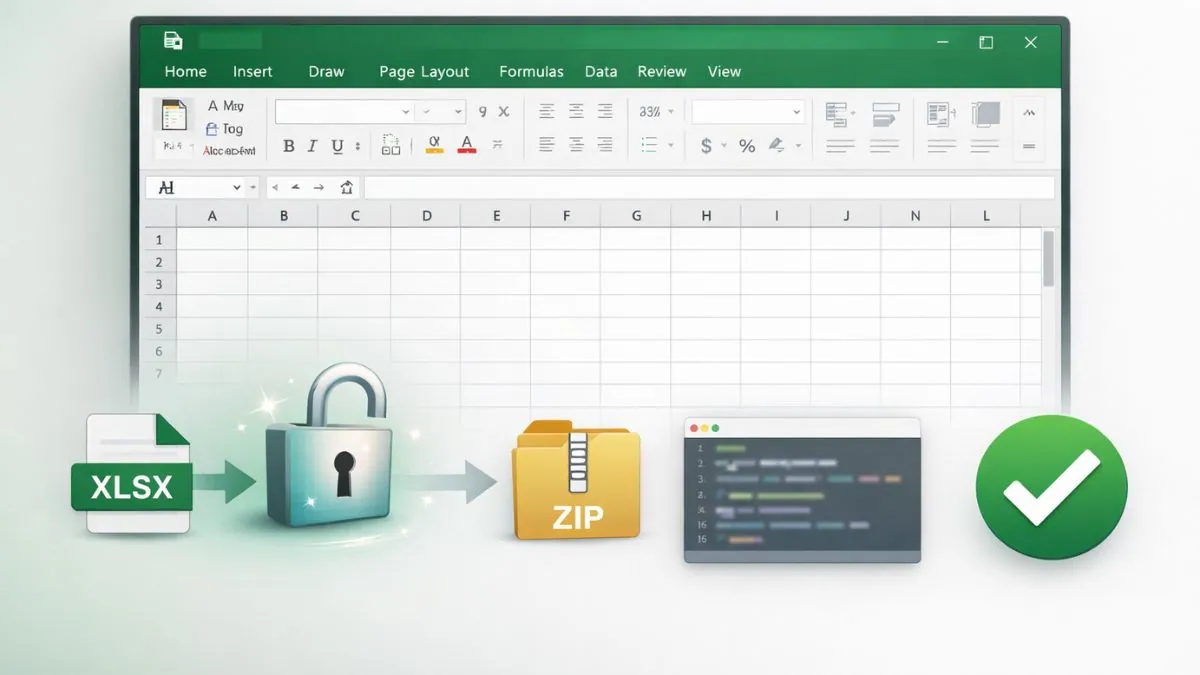
I’ve run into this situation myself, where an Excel worksheet is locked and the password is missing or forgotten. Worksheet protection is useful until it stops you from editing your own data.
In this guide, I’ll show how to remove password protection from an Excel worksheet without affecting data, formulas, or formatting. These methods are meant for files you own or are authorized to edit and apply only to worksheet-level protection.
Notice: This guide is intended for removing password protection from Excel worksheets that you own or are authorized to edit. Worksheet protection is designed to prevent accidental changes, not to secure confidential data. These methods should not be used to access files without permission or to bypass encrypted or corporate-protected documents.
Table of Contents
Worksheet Protection vs Workbook Password (Read This First)
Excel uses different types of protection, and this often causes confusion.
The methods below work only for worksheet protection. This is the lock that prevents editing cells, formulas, or formatting inside a sheet.
If your Excel file asks for a password before it opens, or shows a message like “This workbook is protected,” these steps will not work. That type of protection uses file-level encryption and cannot be removed using this method.
Make sure the issue is limited to a single worksheet before continuing.
Things to Know Before You Start
Before removing worksheet protection, there are a few important points to check.
These methods work only with .xlsx files. They do not work with older .xls files or Excel files protected by an open password.
Always create a copy of the Excel file before making any changes. Editing the wrong file or deleting the wrong code can corrupt the workbook.
This process removes protection from one worksheet at a time. If multiple sheets are protected, the steps must be repeated or a VBA method should be used.
Also Read: How to Change Your Gmail Name on Any Device
Ways to Remove Password Protection from Excel Worksheets
Method 1: Using a Text Editor (Manual Method)
This method is best when you need to remove password protection from one worksheet.
Step 1: Create a Copy of the Excel File
Before making any changes:
- Right-click on the password-protected Excel file to open the options menu
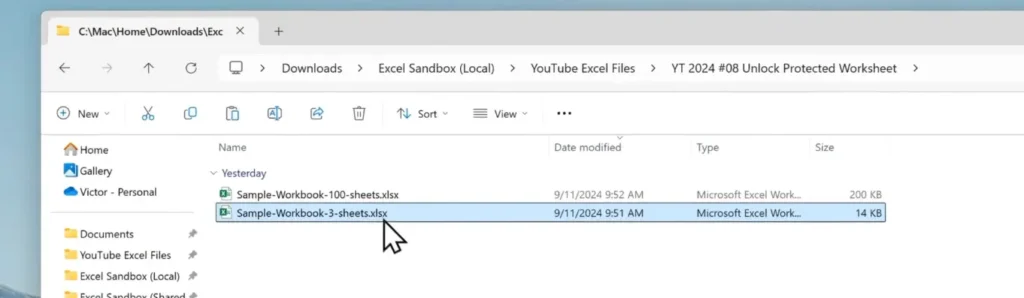
- Click once on the Excel file and press Ctrl + C to copy it.
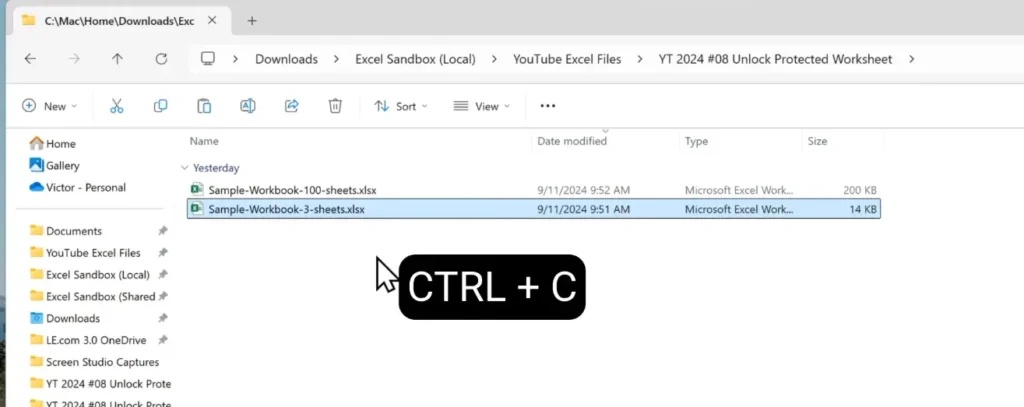
Press Ctrl + V to paste the file and create a copy of the protected worksheet.
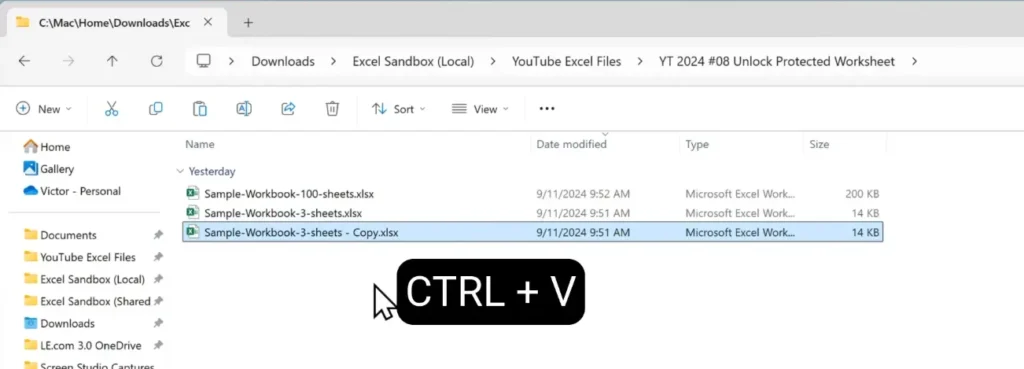
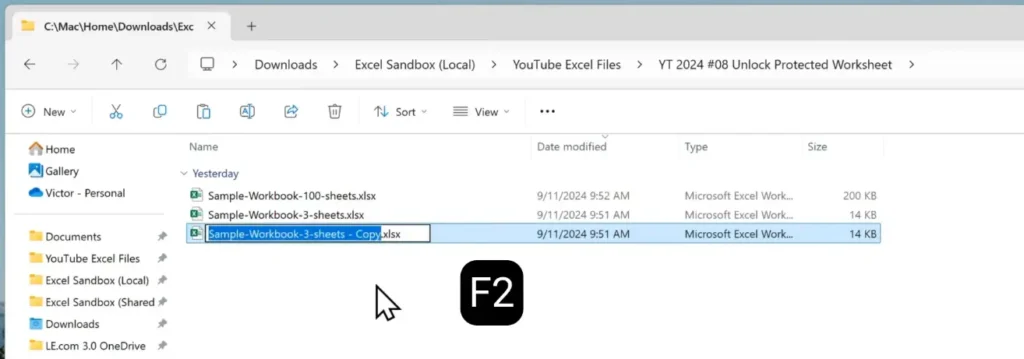
Next, select the copied Excel file and press F2 on your keyboard to rename it.
Step 2: Change the File Extension to ZIP
Next, change the file extension of the copied Excel file from .xlsx to .zip.
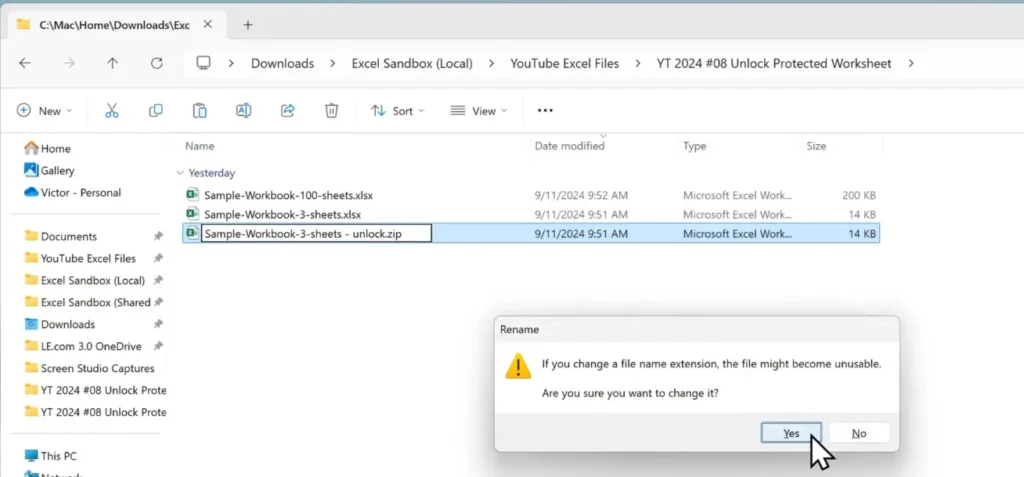
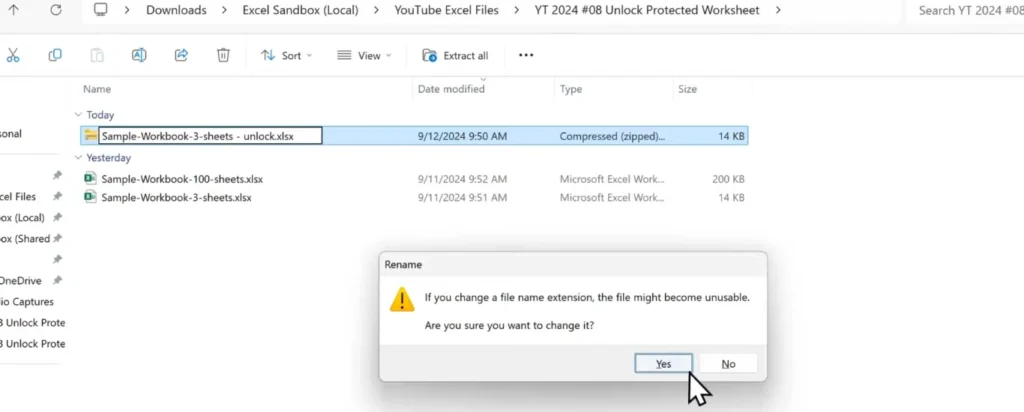
After renaming the file extension from .xlsx to .zip, click Yes to confirm the change when Windows shows the warning message.
Step 3: Open the ZIP File and Locate the Worksheet Folder
- Double-click the ZIP file
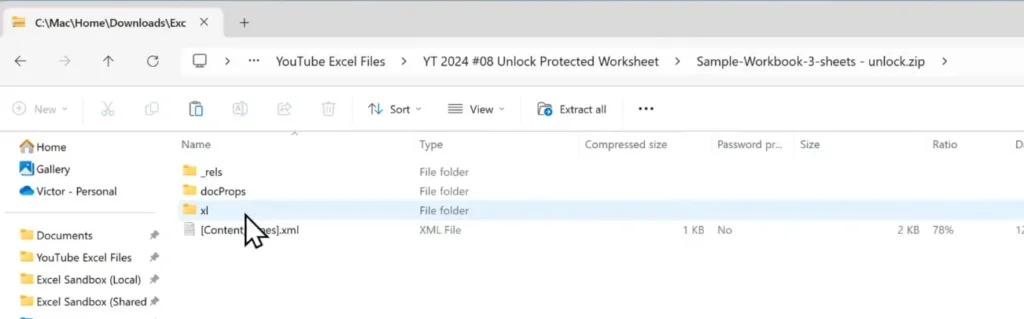
- After opening the ZIP file, locate and open the xl folder to access the worksheet files.
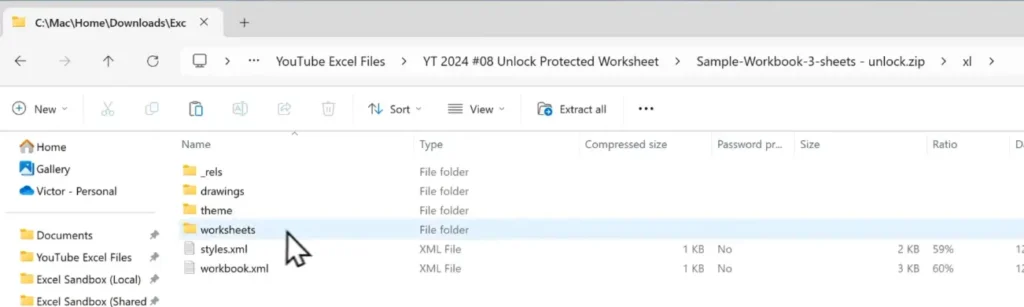
- Then open the worksheets folder
Inside the xl folder, open the worksheets folder to locate the protected sheet file.
Step 4: Open the Worksheet File in a Text Editor
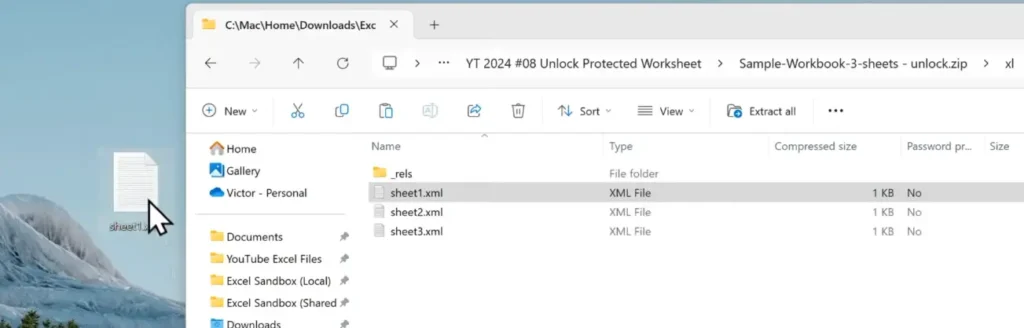
From the worksheets folder, locate the XML file for the protected sheet (for example, sheet1.xml) and drag it to the Desktop to create a copy.
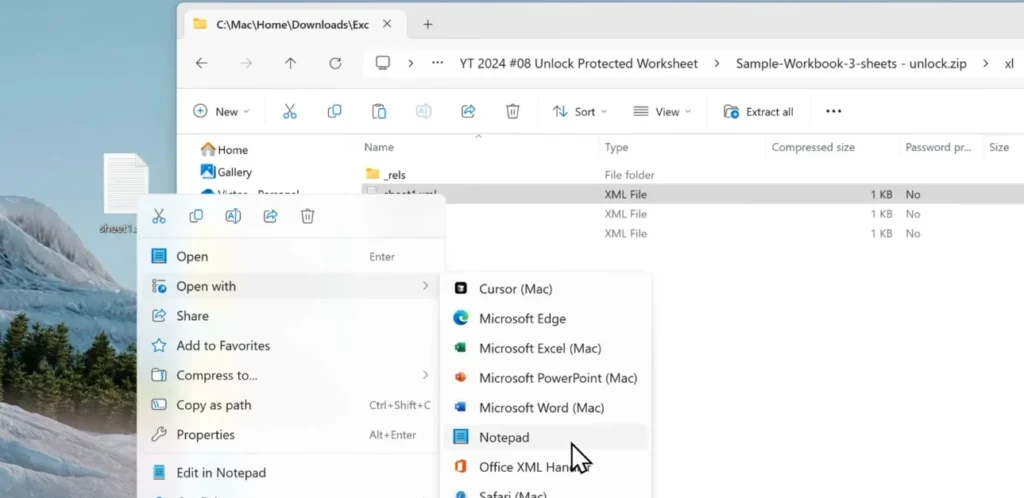
Right-click the copied worksheet XML file, select Open with, and choose Notepad to edit the file.
Step 5: Find and Remove the Sheet Protection Code
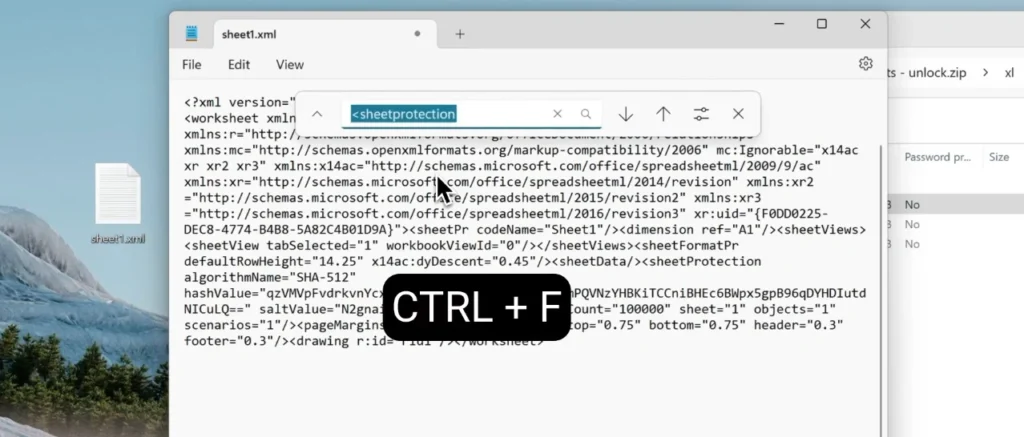
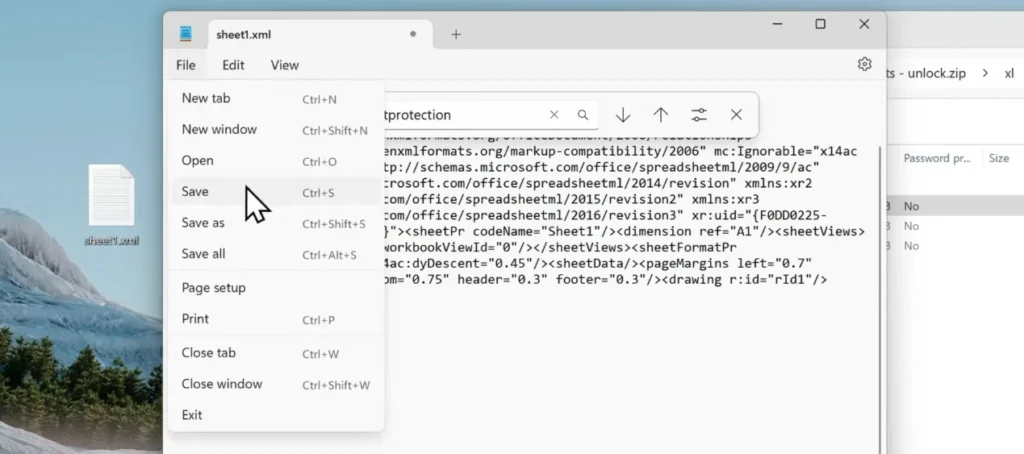
In Notepad, press Ctrl + F, type <sheetProtection>, and press Enter to locate the worksheet protection code.
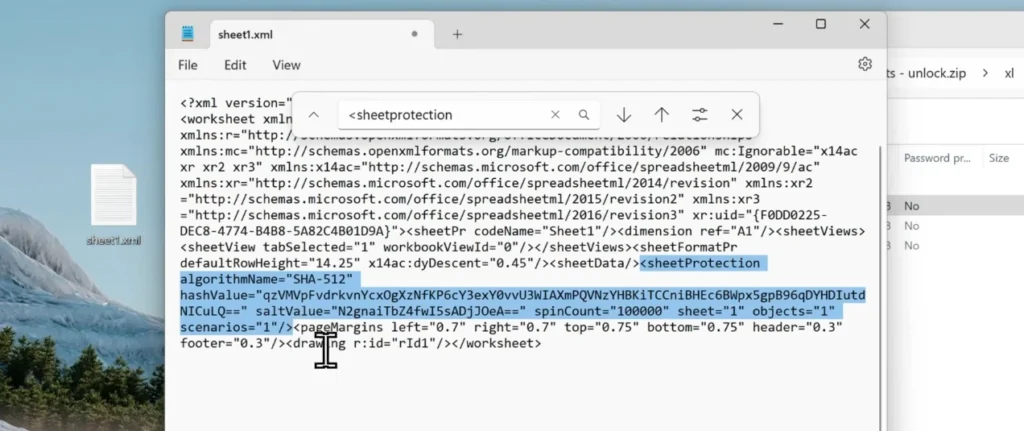
Carefully select the entire <sheetProtection> section, from the opening tag to the closing angle bracket, to prepare it for removal.
Step 6: Save and Replace the XML File
After deleting the sheet protection code, click File and select Save to apply the changes to the XML file and Close Notepad
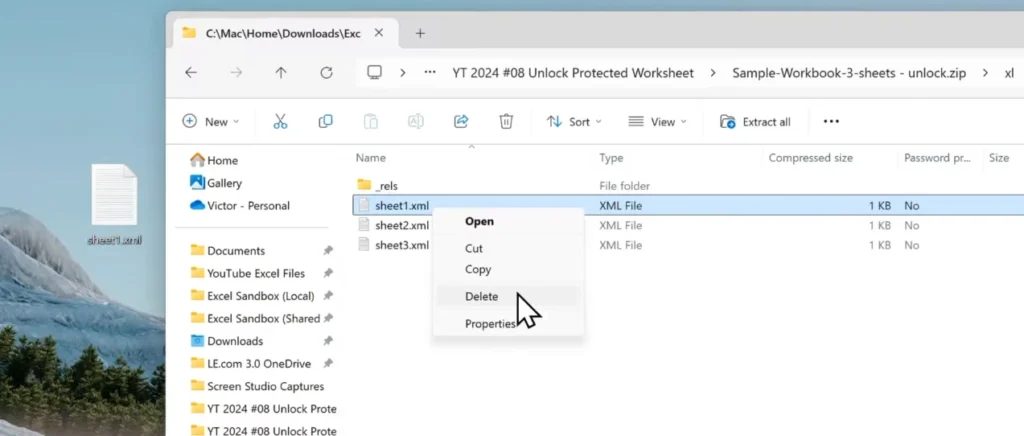
Return to the worksheets folder, right-click the original sheet1.xml file, and click Delete to remove it.
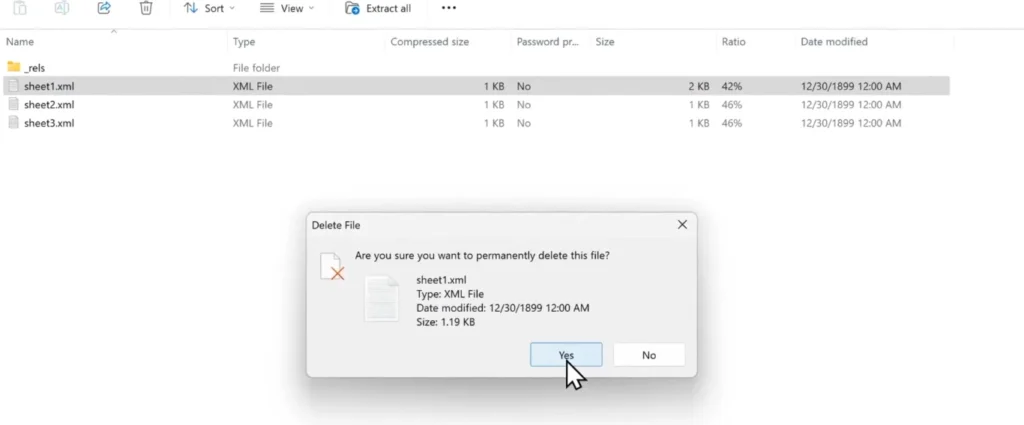
When prompted, click Yes to permanently delete the original sheet1.xml file from the worksheets folder.
Copy the modified sheet1.xml file and paste it back into the worksheets folder inside the ZIP archive.
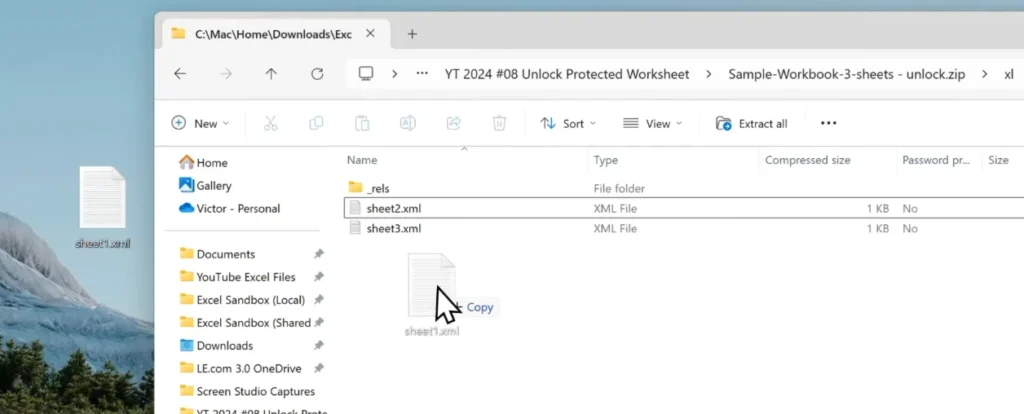
Confirm that the modified sheet1.xml file is now present inside the worksheets folder before proceeding to restore the Excel file format.
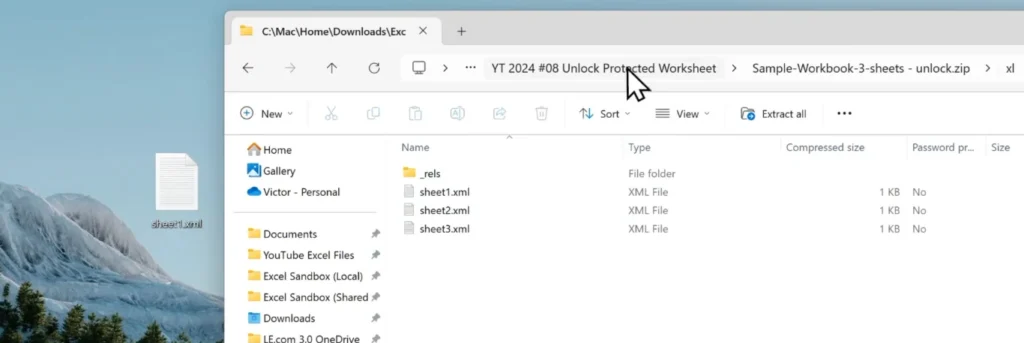
Step 7: Convert the ZIP File Back to Excel Format
Go back to the folder containing the ZIP file, select the file, and prepare to rename it back to the Excel format.
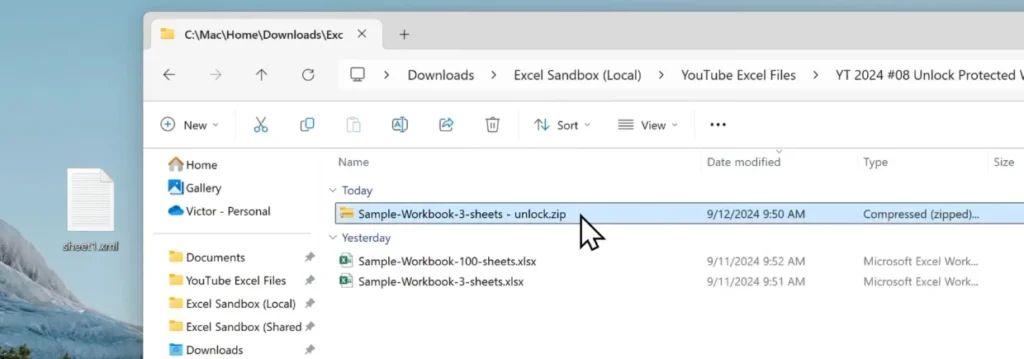
Rename the ZIP file by changing the extension from .zip back to .xlsx, then click Yes to confirm the file format change.
Step 8: Open Excel and Verify
Finally, open the renamed .xlsx file and verify that the worksheet is now unlocked and editable.
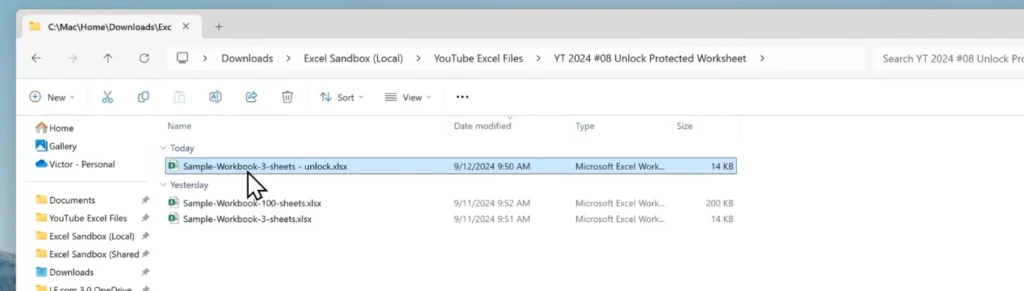
Open the Excel workbook and confirm that the worksheet is editable, indicating that the password protection has been successfully removed.
Also Read: How to Transfer Files from Laptop to Laptops
Conclusion
Worksheet protection in Excel is meant to prevent accidental changes, not to lock you out of your own work. When the password is missing, removing that protection can be the fastest way to get back to editing without rebuilding the file.
As long as the file is not encrypted and you are authorized to use it, the methods above provide a practical way to unlock protected sheets safely. Once access is restored, it’s a good idea to review or reset the protection to avoid the same issue in the future.
FAQs
What is Excel worksheet protection?
Worksheet protection prevents changes to cells, formulas, or formatting inside a sheet. It does not encrypt the file or protect it from being opened.
Can I remove worksheet protection without knowing the password?
Yes. Worksheet protection can be removed using the methods shown here, as long as the file is not encrypted and you are authorized to edit it.
Will removing worksheet protection delete data or formulas?
No. These methods remove only the protection setting. All data, formulas, and formatting remain unchanged.
Why doesn’t this method work on some Excel files?
It will not work if the file uses an open-password, workbook encryption, or Excel Online protection.
Is the text editor method safe to use?
Yes, when you work on a copy of the file and remove only the sheetProtection tag from the worksheet XML file.
Which method is better for large Excel files?
For workbooks with multiple protected sheets, the VBA method is faster and avoids repeating manual steps.