
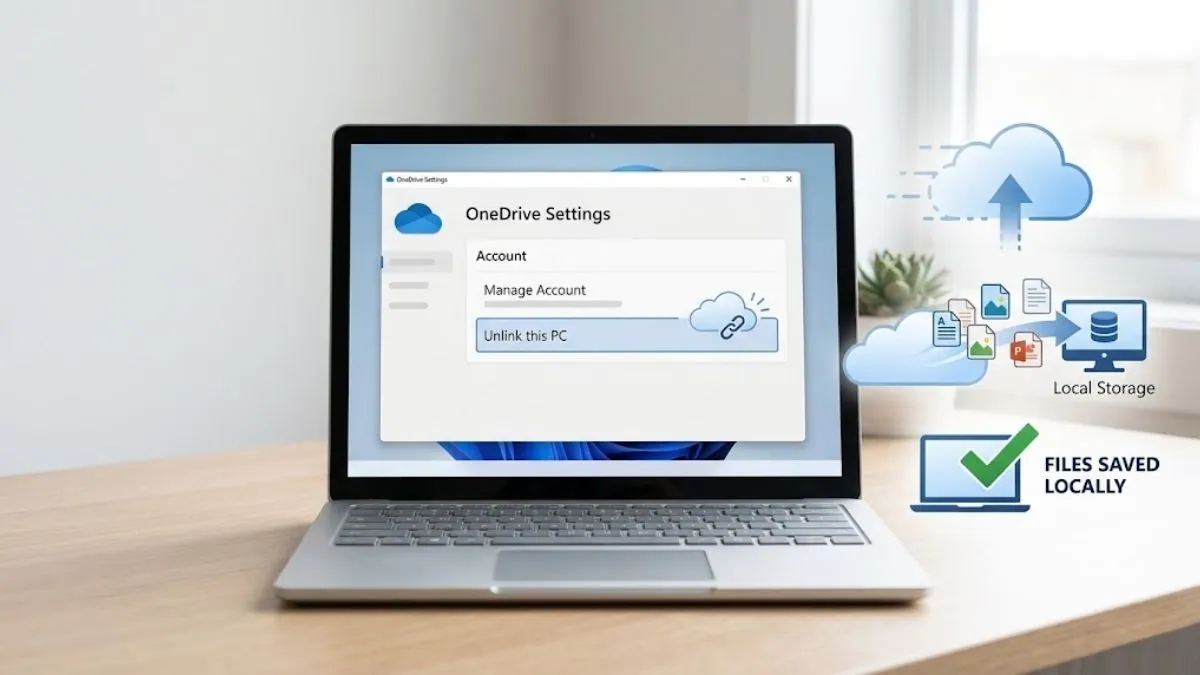
Are you looking to unlink OneDrive from your PC/Laptop? The steps below will guide you in removing OneDrive account from your system easily.
Many users face problems with OneDrive like files syncing automatically, storage filling up, or folders moving without clear control. This can make it difficult to manage files on your computer.
These issues are often related to how Windows handles background apps and system settings, which can affect overall performance and file management.
Unlinking OneDrive is a simple way to stop syncing and keep your files only on your PC. It disconnects your Microsoft account from your device, giving you full control over where your files are stored. This guide explains not only the steps but also what happens before and after unlinking, so you can avoid any data loss.
Quick Steps to Unlink OneDrive
If you want to unlink OneDrive quickly, follow these simple steps:
- Click the OneDrive cloud icon in the taskbar.
- Select Help & Settings, then click Settings.
- Go to the Account tab.
- Click Unlink this PC and confirm.
This will stop OneDrive from syncing your files with your computer.
What Happens After You Unlink OneDrive
After you unlink OneDrive, your computer will stop syncing files with the cloud.
Cloud storage services like OneDrive are designed to keep files synchronized across devices, which is why disconnecting the account stops all automatic updates between local and online storage.
Any files that are already downloaded on your PC will stay there and you can still use them normally. However, new changes will not be uploaded to OneDrive, and updates from the cloud will not come to your device.
Your files will still remain safe in your OneDrive online account. You can access them anytime by signing in through a browser.
Also, folders like Desktop, Documents, or Pictures will no longer sync with OneDrive if they were connected before. This gives you full control over your files on your local system.
Will You Lose Your Files?
No, you will not lose your files if they are already saved on your computer.
If a file has a green checkmark icon, it means it is stored locally on your PC. These files will stay safe even after unlinking OneDrive.
However, if a file shows a cloud icon, it means it is only available online. These files will not be accessible on your PC after unlinking unless you download them first.
So, before unlinking, always make sure important files are saved locally. This simple check helps you avoid losing access to any important data.
Step 1: Prepare Files Before Unlinking OneDrive
Before unlinking OneDrive, make sure your important files are saved locally on your computer.
- Open File Explorer on your Windows PC.
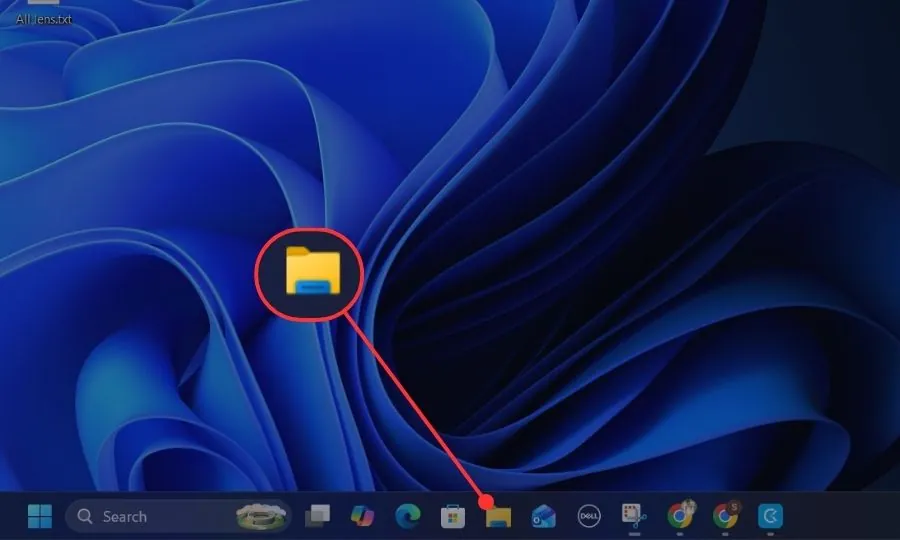
Note: File Explorer is the main tool for accessing files and folders in Windows, and it plays a key role in managing both local and cloud-based storage. If you are not familiar with it, you can learn how to show This PC on desktop in Windows.
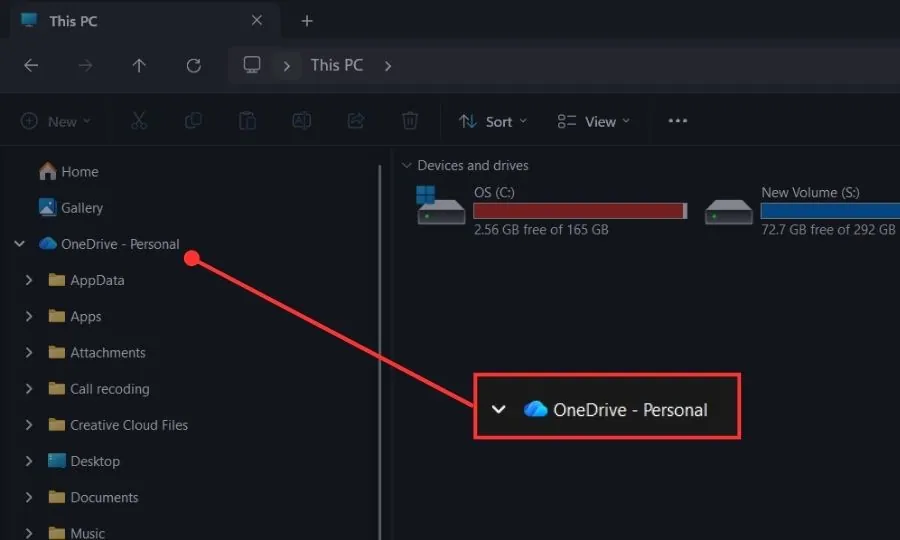
2. Click the OneDrive folder from the left sidebar.
3. If you see files with a cloud icon, right-click the file or folder. Then, click “Always keep on this device” to download it to your computer.
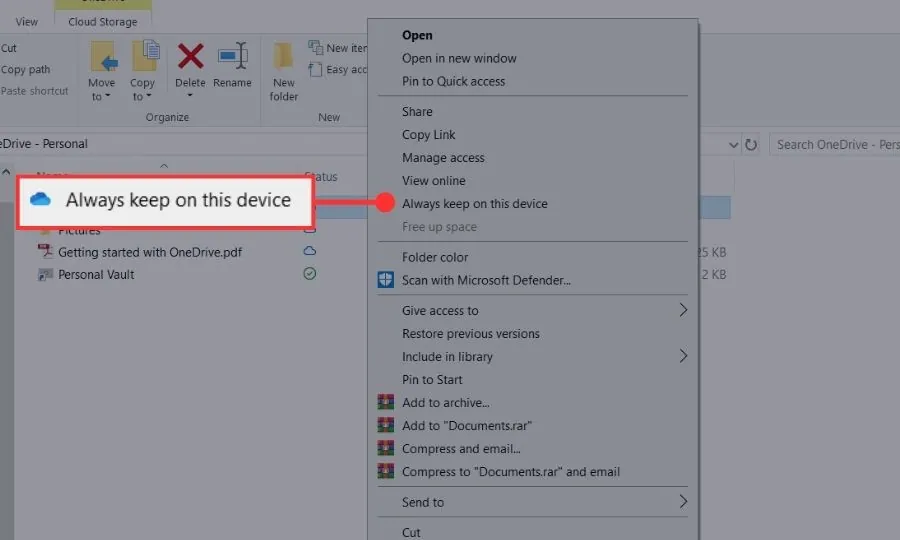
Note: You have to wait until the status icon changes to a green checkmark. If needed, you can copy important files from the OneDrive folder to another folder on your PC.
Step 2: Open OneDrive Settings
Follow these steps to open the OneDrive settings on your Windows laptop or PC.
- Locate the OneDrive cloud icon in the taskbar notification area, and right-click on it.
- Click Help & Settings from the menu, and select Settings.
- The Microsoft OneDrive Settings window will open on your screen.
Step 3: Unlink the PC from the OneDrive Account
- In the OneDrive Settings window, click the “Account” tab.
- Locate the option “Unlink this PC” and click on it.
- A confirmation window will appear, where you have to click “Unlink account” to confirm.
Once you confirm your decision, your PC will be disconnected from the OneDrive account, and OneDrive will stop syncing files with your computer.
Step 4: Restore Folder Locations and Disable OneDrive
- Open File Explorer, and navigate to folders like Desktop, Documents, and Pictures.
- If these folders were linked to OneDrive, right-click the folder and click Properties.
- Open the Location tab and click Restore Default to move the folder back to the local PC location.
- Click Apply, then OK.
- To stop OneDrive from running, right-click the OneDrive cloud icon again.
- Click Help & Settings, then select Quit OneDrive.
Once you select the “Quit OneDrive” option, OneDrive will stop running on your computer, and the syncing process will be paused. The OneDrive cloud icon will also disappear from the taskbar, and the app will no longer automatically sync files between your PC and your OneDrive account until you open the OneDrive app again.
How to Stop OneDrive Syncing (Without Unlinking)
If you don’t want to fully unlink OneDrive, you can just stop syncing for some time or limit what gets synced.
You can click the OneDrive cloud icon in the taskbar, then select Help & Settings and choose Pause syncing. This lets you stop syncing for a few hours without disconnecting your account.
Another option is to manage which folders are synced. Go to Settings > Account > Choose folders, and uncheck the folders you don’t want on your PC.
You can also turn off automatic backup for folders like Desktop, Documents, and Pictures. This helps keep your files only on your computer without removing OneDrive completely.
How to Disable or Remove OneDrive Completely
If you don’t want to use OneDrive at all, you can disable it or remove it from your computer.
To stop OneDrive from starting automatically, click the OneDrive icon in the taskbar, go to Help & Settings > Settings, and uncheck Start OneDrive automatically when I sign in to Windows.
If you want to remove it completely, open Settings on your PC, go to Apps, then Installed apps. Find Microsoft OneDrive in the list, click on it, and select Uninstall.
After uninstalling, OneDrive will no longer run or sync files on your computer. You can still install it again later if needed.
Unlink vs Pause vs Uninstall OneDrive
It is important to understand the difference between these options so you can choose what works best for you.
Unlink OneDrive means your account is disconnected from the PC. Syncing stops, but the app is still installed on your system.
Pause Syncing is a temporary option. It stops syncing for a short time, but everything will start again automatically after the pause ends.
Uninstall OneDrive removes the app completely from your computer. It will no longer run or sync unless you install it again.
If you only want to stop syncing for a while, use pause. If you want to disconnect your account, use unlink. If you don’t want OneDrive at all, uninstall is the best option.
next
How to Link OneDrive Again
If you change your mind, you can easily connect OneDrive again to your PC.
Click the Start menu and search for OneDrive, then open the app. A setup window will appear asking you to sign in.
Enter your Microsoft account email and password, then follow the on-screen steps. Once done, OneDrive will start syncing your files again.
Your files from the cloud will appear on your computer, and syncing will continue like before.
OneDrive Unlink Not Working (Fixes)
Sometimes, OneDrive may not unlink properly due to small issues. You can try these simple fixes.
First, close OneDrive completely and open it again. Then try unlinking once more from the settings.
If that does not work, restart your computer. This can fix temporary system problems.
You can also reset OneDrive. Press Windows + R, type%localappdata%\Microsoft\OneDrive\onedrive.exe /reset
and press Enter. After that, open OneDrive again and try unlinking.
Make sure your internet connection is stable, as OneDrive needs it to update account changes.
These steps usually fix most unlinking problems.
When Should You Unlink OneDrive?
Unlinking OneDrive is useful in many real situations.
If your laptop has low storage, especially on smaller SSDs, unlinking can help stop unnecessary syncing and save space. It is also helpful on shared computers where you do not want your personal files connected to a cloud account.
Some users unlink OneDrive when syncing causes problems, like slow performance or files updating incorrectly. It is also a good option if you prefer to manage files manually instead of using cloud storage.
If you rarely use OneDrive, unlinking can make your system simpler and easier to control.
Also Read: Best SSD Laptops
Common Mistakes to Avoid
Before unlinking OneDrive, avoid these common mistakes:
- Not downloading important files: If your files are only in the cloud, you may lose access to them on your PC after unlinking. Always ake sure important files are saved locally.
2. Confusing unlink with uninstall: Unlinking only disconnects your account, but OneDrive is still installed. If you want to remove it completely, you need to uninstall it.
3. Unlinking before sync is complete: If syncing is still in progress, some files may not be fully updated. Always wait for syncing to finish.
4. Forgetting about folder backup: Folders like Desktop or Documents may still be linked to OneDrive. Make sure to restore them to local storage if needed.
FAQs
Can I unlink OneDrive without deleting files?
Yes, unlinking does not delete your files. Files saved on your PC will remain सुरक्षित, and files in the cloud will stay in your OneDrive account.
Is it safe to unlink OneDrive?
Yes, it is completely safe. It only stops syncing between your PC and the cloud.
Why is OneDrive still syncing after unlinking?
This can happen if OneDrive is still running in the background. Try quitting the app or restarting your PC.
Can I use OneDrive again after unlinking?
Yes, you can link your account again anytime by signing in to OneDrive.
Do I need internet to unlink OneDrive?
Usually, yes. OneDrive may need an internet connection to update account settings properly.
How do I remove OneDrive from File Explorer?
To remove OneDrive from File Explorer, you need to uninstall it. Go to Settings > Apps > Installed apps, find Microsoft OneDrive, and click Uninstall. After that, it will no longer appear in File Explorer.
Why are my files still in OneDrive after unlinking?
Unlinking only disconnects your PC from OneDrive. Your files are still stored in your OneDrive cloud account. You can access them anytime by signing in online.
Conclusion
Unlinking OneDrive is a simple way to stop automatic syncing and take full control of your files. It helps you manage storage better and keeps your data only where you want it.
Whether you want to stop syncing, improve performance, or avoid cloud storage, unlinking gives you flexibility. And if needed, you can always connect OneDrive again later without any problem.