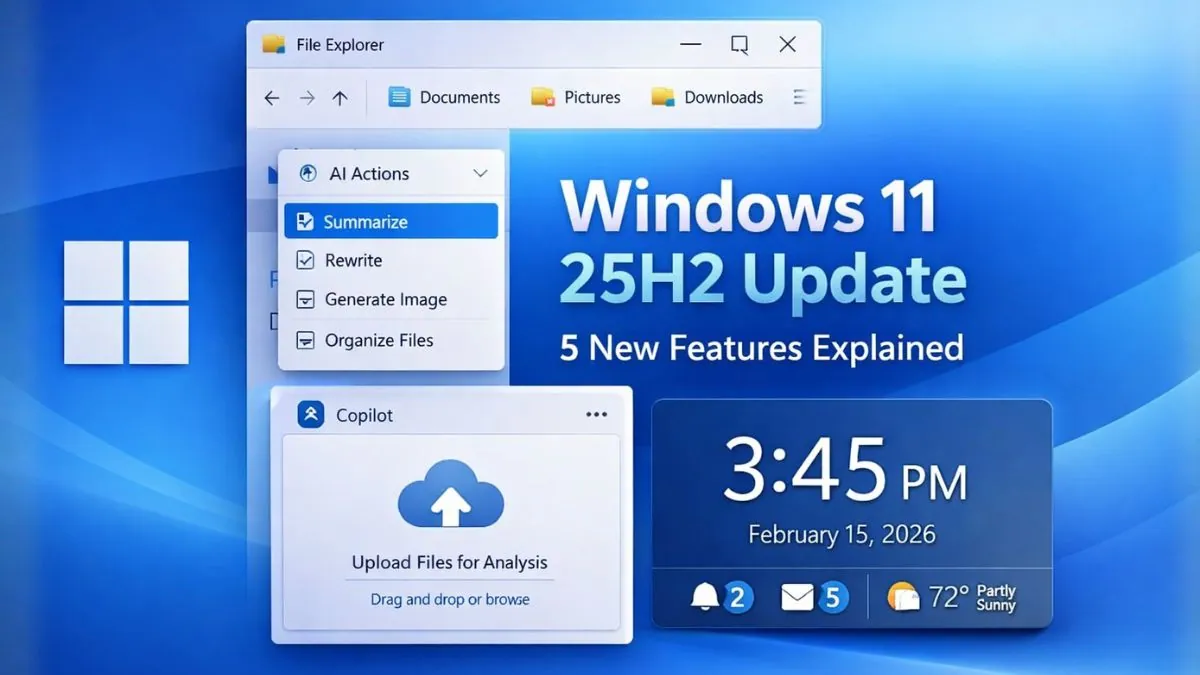
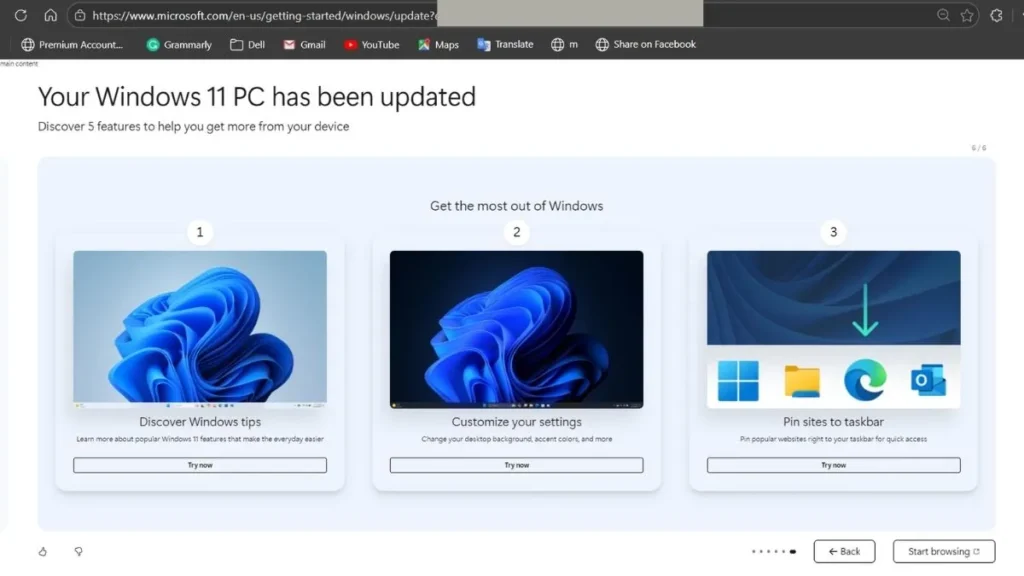
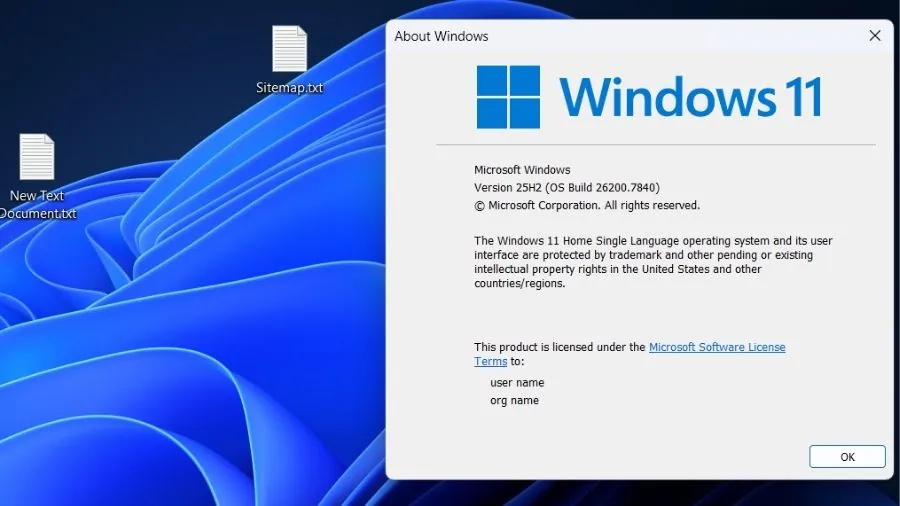
I updated my Windows 11 laptop to Version 25H2 (OS Build 26200.7840), and after the installation was complete, the update introduced 5 new features.. Microsoft highlighted them right after the update finished, and I decided to explore each one in detail to see what actually changed.
This update feels heavily focused on productivity and AI integration. From a bigger clock in the Notification Center to AI-powered actions directly inside File Explorer, the improvements are practical rather than cosmetic. Some of them save time instantly, while others add smarter tools built directly into the system.
In this article, I’m going to walk you through all 5 features I received after updating my Windows 11 laptop, explain what they do, and share how you can use them.
1. Big Clock Returns to Notification Center
After updating my Windows 11 laptop, the first thing I noticed was the return of the big clock inside the Notification Center. When I clicked on the date and time from the taskbar, I could clearly see a larger clock with seconds displayed. It may sound small, but this is actually a very useful improvement.
Earlier, Windows 11 removed the larger clock view, and I had to rely only on the small taskbar time. Now, the bigger clock gives a much clearer and more detailed view, especially when I need to track seconds precisely. If you work with deadlines, online meetings, exams, or trading platforms, this small addition makes a noticeable difference.
The interface looks clean, and the clock sits right above the calendar, making it easy to glance at both date and time without opening any additional apps.
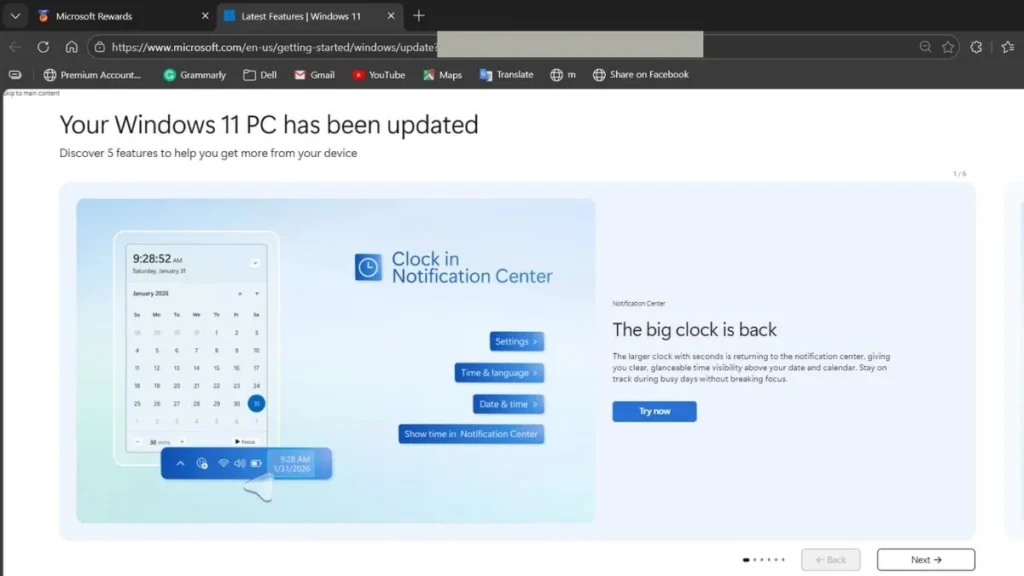
How I Enabled the Big Clock in Notification Center
If you don’t see it immediately, here’s how I checked and enabled it:
- I opened Settings
- Went to Time & Language
- Clicked on Date & Time
- Enabled the option Show time in Notification Center
After turning this on, the larger clock with seconds started appearing whenever I opened the Notification Center.
Why This Feature Is Actually Useful
For me, this is helpful during:
- Attending scheduled meetings
- Tracking submission deadlines
- Monitoring time-sensitive tasks
- Staying focused during study sessions
It’s not a flashy AI feature, but it improves day-to-day usability. Sometimes, small practical improvements make the biggest impact.
2. Snipping Tool Gets Quick Markup Improvements
The second feature I explored after updating my Windows 11 laptop was the improved Snipping Tool. I regularly use screenshots for work, tutorials, and quick references, so I was curious to see what changed.
After taking a screenshot, I noticed that the Quick Markup interface feels faster and more refined. The editing tools are easier to access, and highlighting or annotating content takes fewer clicks. I can instantly mark important text, circle sections, or underline key points without opening another app.
This makes the entire screenshot workflow much smoother. Instead of capturing an image, saving it, and then editing it somewhere else, I can now capture, edit, and share within seconds.
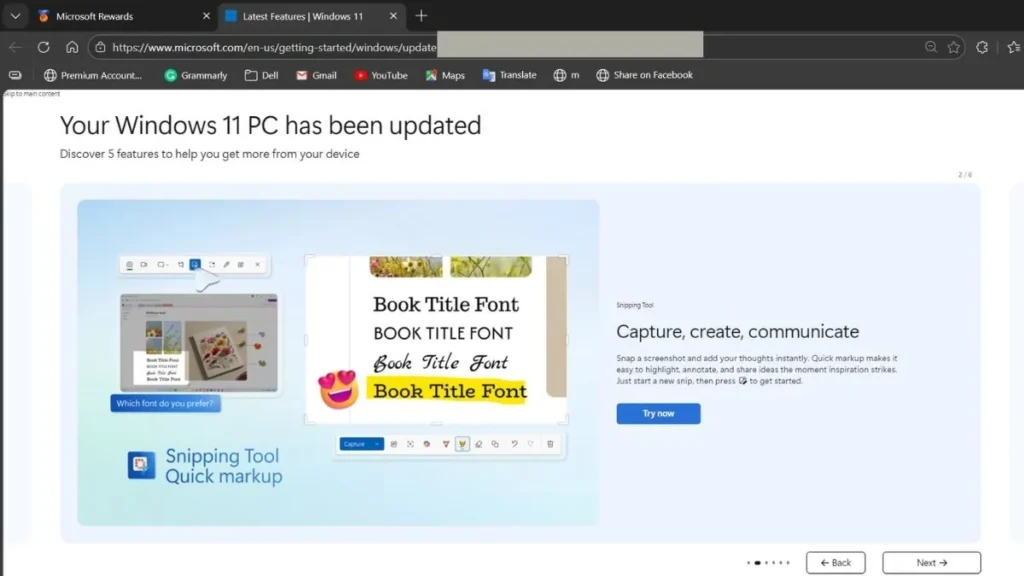
How I Used the Updated Snipping Tool
Here’s exactly what I did:
- Pressed Windows + Shift + S
- Selected the area I wanted to capture
- Opened the preview from the notification popup
- Used the built-in markup tools to highlight and annotate
- Saved or shared the edited image directly
The editing toolbar now feels more responsive, and tools like highlight, crop, and drawing are positioned clearly.
Why This Update Matters
For me, this improvement is useful when:
- Creating how-to guides
- Sharing quick feedback on documents
- Explaining things visually
- Highlighting important information instantly
If you create tutorials, presentations, or online content, this update reduces extra steps. It keeps everything inside Windows without needing third-party editing software.
3. Emoji Panel Now Easily Accessible from the Taskbar
The third feature I noticed after updating my Windows 11 laptop was related to the Emoji panel. Earlier, I had to press Windows + . (dot) to open emojis, which worked fine, but now there’s an easier way to access it directly from the taskbar.
After the update, I saw that the Emoji shortcut can be pinned to the system tray area. This means I no longer need to remember the keyboard shortcut every time. I can simply click the icon near the clock and instantly open the Emoji and GIF panel.
The panel itself remains searchable, and it works across apps like browsers, email clients, chat applications, and documents. It feels more integrated into the system now.
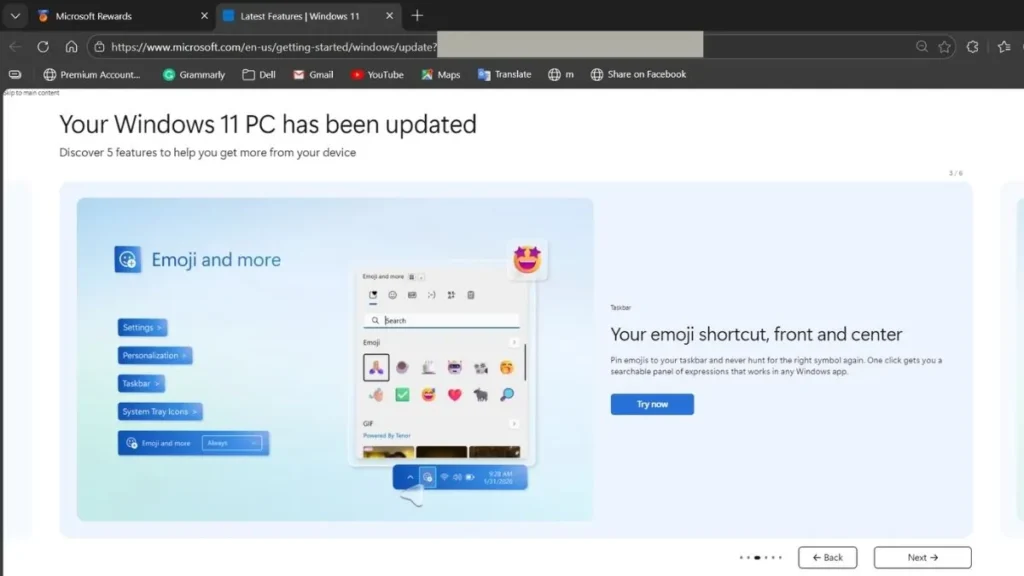
How I Enabled the Emoji Shortcut on the Taskbar
Here’s how I checked and enabled it:
- I opened Settings
- Went to Personalization
- Clicked on Taskbar
- Opened System Tray icons
- Turned on Emoji and more
Once enabled, the emoji icon appeared in the taskbar system tray. Clicking it opens the emoji panel instantly.
Why This Small Change Is Useful
For me, this is helpful when:
- Replying to messages quickly
- Writing social media posts
- Adding reactions in emails
- Using GIFs in conversations
It may not be a major system-level change, but it improves everyday communication. Instead of relying on shortcuts, everything is just one click away.
4. Upload Files Directly to Copilot in Windows 11
This is one of the most interesting features I received after updating my Windows 11 laptop. I can now upload files directly into Copilot and ask questions about them.
Earlier, Copilot mostly worked based on text prompts. Now, I can upload documents like PDFs, Word files, or other supported formats and ask Copilot to summarize, analyze, or explain the content. This makes it much more practical for daily work.
When I tested it, I uploaded a document and asked Copilot to summarize key points. Within seconds, it generated a structured summary. I also tried asking it to improve writing and extract specific information, and it handled that smoothly.
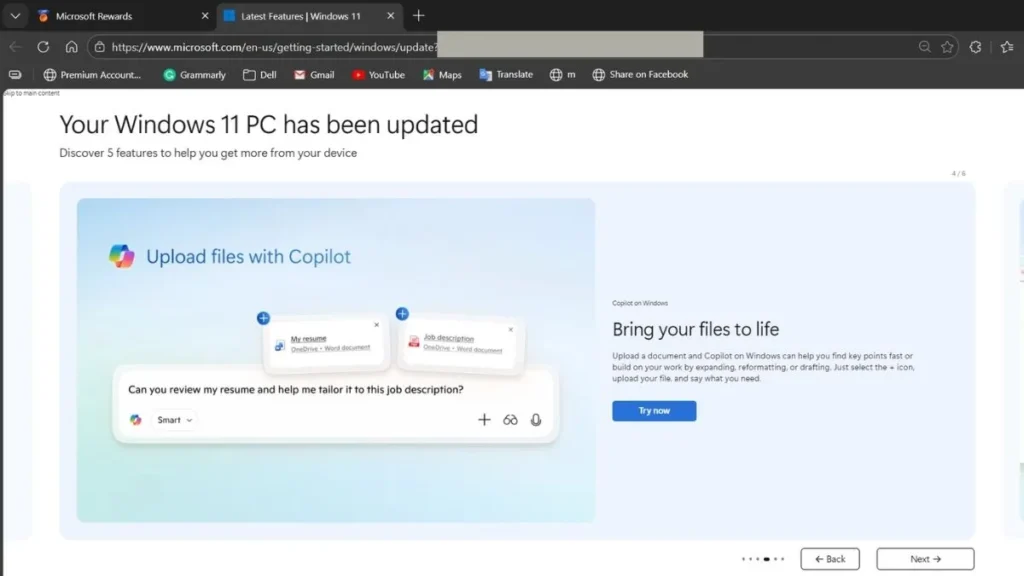
How I Uploaded a File to Copilot
Here’s what I did step by step:
- Opened Copilot from the taskbar
- Clicked on the + (Upload) icon
- Selected a document from my system
- Typed a prompt like “Summarize this document” or “Highlight key points”
- Copilot analyzed the file and responded instantly
The process is straightforward, and I didn’t need any additional software.
How I See This Being Useful
From my experience, this feature is helpful for:
- Summarizing long reports
- Reviewing resumes
- Extracting data from PDFs
- Explaining technical documents
- Improving written drafts
Instead of copying and pasting text manually, I can simply upload the file and let Copilot process it. This feels like a practical AI upgrade rather than just a cosmetic feature.
5. AI Actions in File Explorer
The fifth feature I discovered after updating my Windows 11 laptop is AI Actions directly inside File Explorer. This one immediately caught my attention because it changes how I interact with files.
Now, when I right-click on certain image files, I can see AI-powered options like background blur, background removal, and even visual search. Earlier, I would need separate apps or online tools to do this. Now, some of these functions are built directly into the operating system.
It feels like Windows is gradually turning File Explorer into a smarter workspace rather than just a file manager.
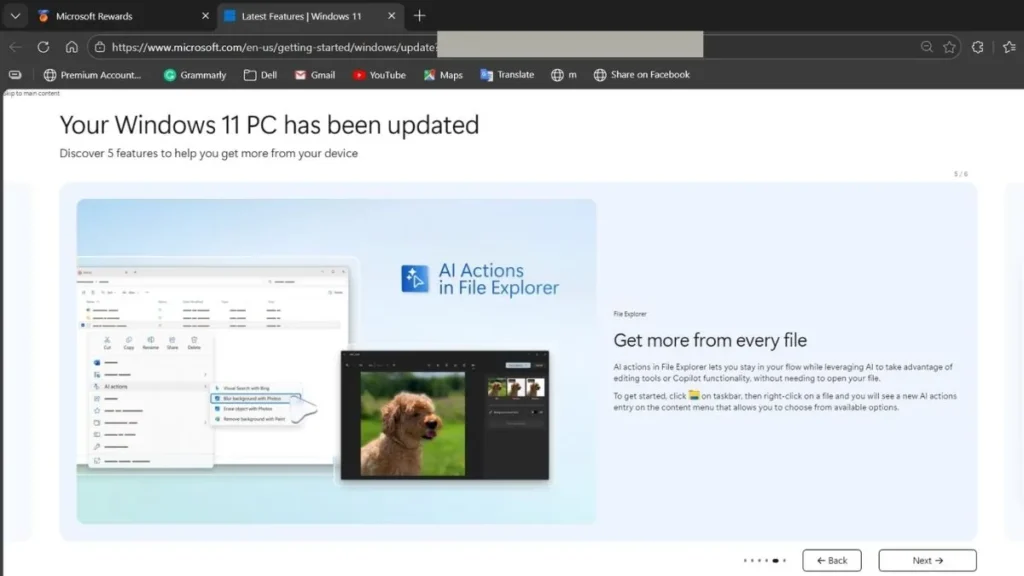
How I Used AI Actions in File Explorer
Here’s what I did:
- Opened File Explorer
- Right-clicked on an image file
- Selected the AI Actions option
- Chose an action like background removal or blur
- Windows processed the image automatically
The processing happens quickly, and I don’t need to install third-party software for simple edits.
Why This Feature Is Actually Powerful
From my perspective, this is useful when:
- Editing product images quickly
- Preparing thumbnails
- Removing backgrounds for presentations
- Doing quick image cleanups
- Searching similar visuals online
For someone who works with images frequently, this saves time. I don’t have to upload files to websites or open heavy editing tools for basic adjustments.
This update clearly shows that Microsoft is embedding AI deeper into everyday Windows tools.
Should You Install This Windows 11 Update?
After exploring all five features on my laptop, I can say this update feels more practical than flashy. It doesn’t completely redesign Windows, but it improves daily workflow in noticeable ways.
If you rely on screenshots, manage documents regularly, or work with images, the AI additions and Snipping Tool improvements are genuinely useful. The return of the big clock is small but meaningful, especially if you care about precise timing. And the Copilot file upload feature adds real value for productivity tasks.
From my experience so far, the update feels stable. I didn’t notice performance issues or major slowdowns after installation. Everything runs smoothly, and the new features integrate naturally into the existing interface.
If you use Windows 11 daily for work, study, or content creation, updating makes sense. Even if you’re a casual user, the improvements make the system more convenient and efficient.
Frequently Asked Questions (FAQs)
What is new in the Windows 11 25H2 update?
After updating my Windows 11 laptop, I received five key additions: a larger clock in Notification Center, Snipping Tool markup improvements, an emoji shortcut in the taskbar, file upload support in Copilot, and AI Actions inside File Explorer.
How do I check if I received the latest Windows 11 update?
I checked by going to Settings → Windows Update → Check for updates. If the February 2026 update is available, Windows will download and install it automatically.
How do I enable the big clock in Windows 11?
I enabled it by navigating to Settings → Time & Language → Date & Time and turning on the option to show time in Notification Center. The larger clock appears when I open the calendar panel.
Can Copilot analyze files in Windows 11?
Yes, I was able to upload documents directly into Copilot after the update. It can summarize, explain, and extract key details from supported files.
What are AI Actions in File Explorer?
AI Actions are right-click options inside File Explorer that allow me to perform tasks like background removal, blur, and visual search on supported image files without using third-party tools.
Is the Windows 11 25H2 update stable?
In my experience, the update installed smoothly, and I did not notice performance issues. The new features worked properly after installation.
Also Read: How to Improve Laptop Battery Life? [Step-by-Step Guide]
Final Thoughts
After using these new features for some time, I feel this update makes Windows 11 more practical. The improvements are simple, but they save time in daily tasks.
The AI additions inside Copilot and File Explorer stand out the most for me. Instead of relying on external tools, I can now complete small tasks directly within the system.
Overall, this update doesn’t change how Windows looks, but it improves how I use it every day, and that makes it worthwhile.